
Grammarly word count
Words
0
Characters
0
Sentences
0
Paragraphs
0
Reading Time
0 min
Reading Level
Easy

Grammarly Word Count
Check your word count instantly with our free online Word Counter Tool — no signup required.
Online Word Counter
If you have ever typed an essay or a work email inside Grammarly and suddenly
wondered, “How many words have I written so far?” — you are not alone. Thousands
of students, bloggers, and professionals search for “Grammarly word count” every
single day.
The short answer? Yes, Grammarly does show you a word count. But where it appears,
what it actually tracks, and whether it is the best option for your needs — that
is what this guide is all about.
Let’s break it all down clearly.
Our online word counter works on desktops, laptops, tablets, and mobile devices, making it a fast and convenient solution for anyone who needs accurate text analysis. Whether you’re checking assignment limits, optimizing blog content, or monitoring writing progress, this tool helps you stay productive and organized.
What Is the Grammarly Word Count Feature?
Grammarly is, at its core, a grammar and writing improvement tool. Word count is
not its primary selling point — but it does include this feature because writers
need it while they work.
When you type inside the Grammarly Editor, you can see live stats about your
document. These include:
- – Total word count
- – Character count (with and without spaces)
- – Number of sentences
- – Number of paragraphs
- – Estimated reading time
- – Estimated speaking time
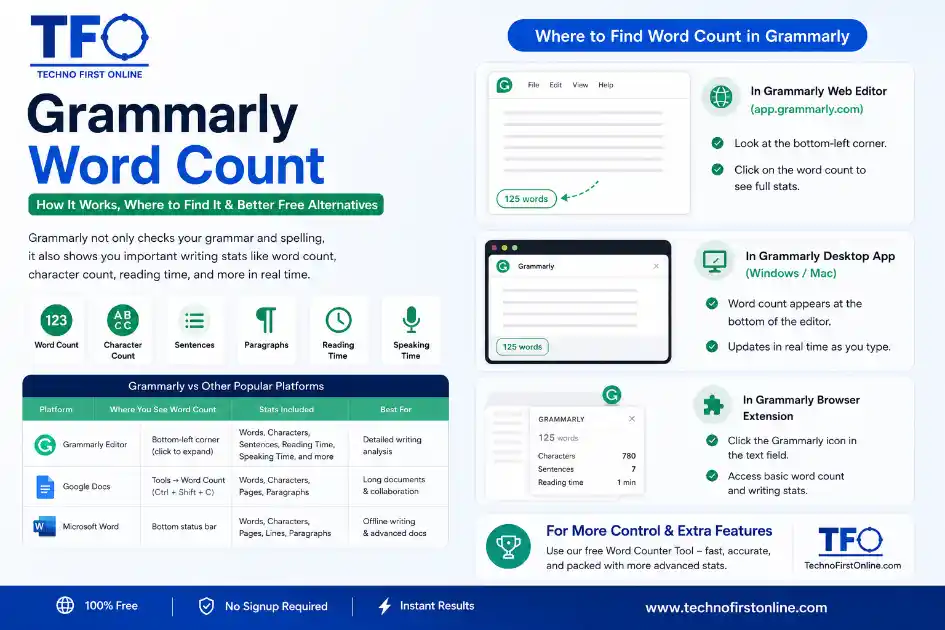
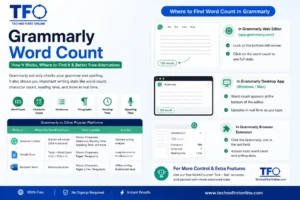
Where to Find Word Count in Grammarly
This is the question most people actually have. Here is a straightforward
breakdown by platform.
In the Grammarly Web Editor (app.grammarly.com)
1. Open your document inside the Grammarly Editor.
2. Look at the bottom-left corner of the screen.
3. You will see a small number — that is your current word count.
4. Click on it to expand the full stats panel.
The full panel shows words, characters, sentences, paragraphs, reading time,
and speaking time. This is the most detailed view Grammarly offers.
In the Grammarly Desktop App (Windows / Mac)
The desktop app works similarly to the web editor. Open any document, and the
word count appears at the bottom of the writing area. It updates in real time
as you type or delete words.
In the Grammarly Browser Extension (Chrome, Firefox, etc.)
This is where things get a little limited.
When you are writing inside Gmail, Google Docs, or any other web-based text
field with the Grammarly extension active, the word count display may not always
be visible directly. In some cases, you can click the Grammarly icon in the
text field and access a basic stats view — but it is not as detailed as the
full editor.
For the most accurate word count tracking, the web editor at app.grammarly.com
is the best place within Grammarly itself.
In Google Docs with Grammarly
If you use Grammarly inside Google Docs, word count can get a little confusing.
Google Docs has its own built-in word counter (Tools → Word Count, or
Ctrl + Shift + C). Grammarly’s overlay does not replace this — it works
alongside it.
So the simple rule here: use Google Docs’ native word count when writing in
Google Docs, even if you have Grammarly active.
Does Grammarly Count Words Accurately?
For most purposes, yes — Grammarly’s word count is reliable.
It counts each space-separated unit as one word, which is the standard method
used by Microsoft Word, Google Docs, and most other writing tools. So if your
document shows 800 words in Grammarly, it should match very closely with what
Word or Docs shows for the same text.
One thing to note: if you copy-paste text from an external source into Grammarly,
some formatting elements or hidden characters might occasionally affect the count
by one or two words. This is rare, but it is worth knowing if precision matters
for academic submissions.
The Grammarly Performance Report — More Than Just Word Count
Grammarly goes a step further with something called the Performance Report.
This is available in the full Grammarly Editor and shows:
- – **Text score** — A score out of 100 based on grammar, clarity, and style
- – **Word count and character count**
- – **Readability score** — How easy your text is to read
- – **Unique vocabulary** — How varied your word choice is
- – **Rare words** — What percentage of your writing falls outside the 5,000 most
common English words
This report is genuinely useful for writers who want to improve, not just count.
You can also download a PDF version of the full report from within the editor.
It is worth exploring if you are writing longer documents like research papers,
blog posts, or reports.
Can Grammarly Reduce Your Word Count?
Interestingly, yes — Grammarly can actually help you cut unnecessary words.
It does this in two ways:
- **1. Regular Grammar Suggestions**
Grammarly often flags wordy phrases. For example, if you write “due to the fact
that,” it might suggest simply using “because.” These micro-edits add up and can
meaningfully reduce your overall word count. - **2. AI-Powered “Suggest Cuts” Feature (Pro Users)**
If you have Grammarly Pro, there is a green lightbulb icon in the editor. Click
it, scroll down to find “Ideas for school,” and select “Suggest cuts.” This uses
AI to identify entire sentences or phrases that can be removed without losing
meaning.
This feature is particularly useful for:
- – College application essays with strict word limits
- – Academic abstracts (usually capped at 250 words)
- – Business emails where brevity is important
- – Social media bios and LinkedIn summaries
Grammarly Word Count Limitations You Should Know
Grammarly is a great writing assistant, but it does have a few limitations when
it comes to word and character tracking:
- – **Document limit:** The Grammarly Editor supports documents up to 100,000
characters (including spaces). Beyond this, you would need to split your
document. - – **File size limit:** Uploaded files cannot exceed 4 MB.
- – **Supported file formats:** Grammarly accepts .doc, .docx, .odt, .txt, and
.rtf files. PDF, LaTeX, and Markdown are not supported for upload. - – **Daily and monthly limits:** Free and Premium users can check up to
50,000 words per day and 150,000 words per 30-day period.
If you regularly work with very long documents or need word count tracking
outside of Grammarly’s ecosystem, a standalone word counter tool gives you
much more flexibility.
Why a Dedicated Word Counter Tool Is Often Better
Grammarly is excellent at grammar and style. But for pure word and character
counting — especially when you need it fast, without logging in — a dedicated
word counter tool wins every time.
Here is why many writers keep both options open:
You Do Not Need to Log In
Grammarly requires an account. If you just want a quick word count for a
paragraph, a standalone tool like the one at TechnoFirstOnline is instant.
Paste your text, get your count — done.
More Detailed Character Breakdowns
A good word counter tool breaks down your text into:
- – Words
- – Characters (with spaces)
- – Characters (without spaces)
- – Sentences
- – Paragraphs
- – Reading time
This level of detail is useful for SEO writers, social media managers, and
anyone working with platform-specific character limits (Twitter/X at 280,
Instagram captions at 2,200, meta descriptions at 155-160 characters, and so on).
Works With Any Platform
A standalone word counter works whether you are writing in Notion, WordPress,
Word, plain Notepad, or anywhere else. You do not need to move your text into
Grammarly just to count it.
Completely Free, No Subscription Required
Grammarly’s free plan has limits. The word counter tool at TechnoFirstOnline
has no account requirements, no daily limits, and no paywalls. Just open,
paste, and count.
👉 Try the free Word Counter Tool here: https://technofirstonline.com/grammarly-word-count/
Each tool has its place. For writing and editing together, Grammarly is hard
to beat. For pure word counting on the go, a dedicated tool is faster and
simpler.
Who Is Grammarly Word Count Most Useful For?
Grammarly’s word count feature is particularly valuable if you fall into one
of these categories:
Students and Academic Writers
Meeting word limits is critical in academic writing — too short and you lose
marks, too long and you might get penalised. Grammarly lets you track word
count live while also fixing grammar in the same window. That dual value is
genuinely useful.
Content Writers and Bloggers
Blog posts and SEO articles often have target word counts (say, 1,500 to 2,000
words for a standard post). Tracking this inside Grammarly while writing saves
you from switching tabs constantly.
Social Media Managers
While Grammarly’s browser extension covers some social platforms, the character
count breakdown in the full editor is helpful when drafting captions or bio copy
that will be published later.
Business Professionals
Writing professional emails, proposals, or reports? Grammarly’s combination of
grammar checking and word count helps you stay concise and polished at the
same time.
Tips for Managing Word Count Effectively
Whether you use Grammarly, a standalone counter, or both — here are a few
practical tips to help you manage word count better:
- – **Set your target before you write.
- ** Decide on a word count goal upfront.
It shapes how much detail you include and prevents over-writing. - – **Write first, count later.
- * Do not interrupt your flow by obsessing over
numbers mid-draft. Get the ideas down, then check the count in your second pass.
- – **Cut adverbs and filler phrases.
- * Words like “very,” “really,” “basically,”
and “in order to” rarely add meaning. Removing them can cut 5-10% of your
word count without losing anything. - – **Use the performance report.
- * If you are in Grammarly, use the full stats
panel — not just the raw word number. Reading time and readability scores
give you a fuller picture of your document’s quality.
- – **Bookmark a fast word counter.** Keep a tab open with a quick standalone
tool for those moments when you need a count in seconds without opening a
full editor.
Most Recent Posts




See More tool

JPG to PDF
Open
My IP Address
Open
Remove Background
Open
UUID Generator
Open
JSON Formatter
Open
base64 encoder decoder
Open
Color Picker
Open
Lorem Ipsum Generator
Open
Fancy Text Generator
Open
slug generator
Open
Keyword Density Checker
Open
Hash generator
Open
Password Generator
Open
Meta tag Generator
Open
percentage calculator
Open
Date Calculator
Open
Compound Interest Calculator
Open
FD Calculator
Open
BMI Calculator
Open
EMI Calculator
Open
GST Calculator
Open
Crop PDF
Open
Watermark PDF
Open
Add Page Numbers to PDF
Open
Rotate PDF Pages
Open
Extract pages from PDF
Open
Delete pages from PDF
Open
PDF OCR Hindi
OpenSplit PDF
OpenMerge pdf
Open
Age Calculator
Open
Image Compressor
Open
youtube thumbnail downloader
Open
Case Converter Online
Open
ai story generator
Open
ai powered resume builder
Open
grammarly word count
Open
AI Humanizer
Open
Free Custom QR Code Generator
Open
resize image size
OpenFrequently Asked Questions
Yes, 100% free. No hidden charges, no premium plan, no sign-up required. You can resize image size as many times as you want at no cost.
Use the quality slider and keep it above 80%. Choose WEBP format for the best combination of quality and small file size when you resize picture online.
Yes, for most purposes Grammarly’s word count is accurate and matches what you
would see in tools like Microsoft Word or Google Docs. It uses the standard
method of counting space-separated units as individual words.
Yes. Grammarly’s regular grammar suggestions often replace wordy phrases with
shorter alternatives. If you have Grammarly Pro, the AI-powered “Suggest cuts”
feature can identify sentences and phrases to remove, which is helpful for
academic submissions or content with strict word limits.
The tool handles most standard image files. For best results when you resize image size, use images under 20MB. Very large files may perform differently depending on your device’s available browser memory.
The Grammarly Editor supports documents up to 100,000 characters (including
spaces) at a time. Uploaded files must not exceed 4 MB. In terms of checking
limits, free and Premium users can check up to 50,000 words per day and
150,000 words in any 30-day period.
For pure word counting without needing an account or login, a dedicated free
word counter tool is often faster and more convenient. Tools like the one at
TechnoFirstOnline give you instant word, character, sentence, and paragraph
counts with no usage limits and no registration required.
Yes. Grammarly counts both characters with spaces and characters without spaces.
This information is available in the full stats panel inside the Grammarly Editor,
which you can open by clicking on the word count number at the bottom of the page.
Grammarly Word Count – Check Words, Characters & Writing
Use Grammarly Word Count to track words, characters, sentences, and reading time instantly. Use Grammarly word count free online browser-based tool.
Price Currency: $
Application Category: All