
Free QR Code Generator
Generate QR codes instantly for URL, Text, Email, WiFi, SMS & vCard
QR CONTENT
CUSTOMIZE
LOGO ON QR (OPTIONAL)

Free Custom QR Code Generator — Create QR Codes for URL, WiFi, vCard & More
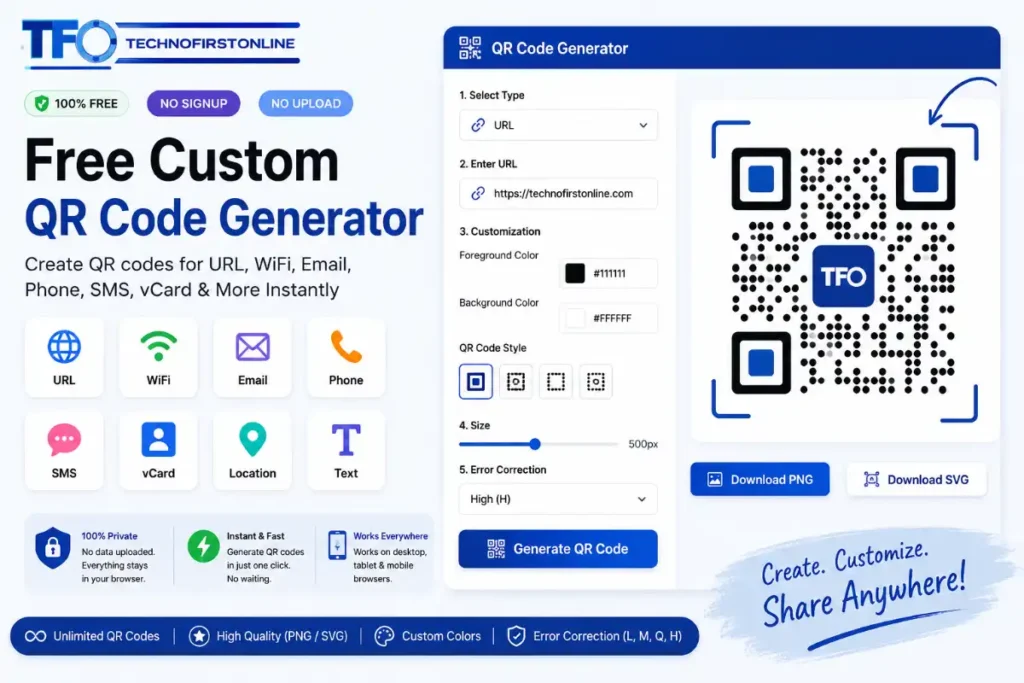
I Have Creat Custom QR code for My Wifi And My Visiting Card. Its Very Geartfully Exprince with this tool to creat qr code with this browser-based QR tool
You walk into a restaurant and a small card on the table says “Scan to connect to WiFi.” One scan and you are online — no typing, no asking the staff. That little square did all the work. This is smart work to give QR code to Connect wifi.
That little square is a QR code. And today, creating one takes less than 30 seconds using our Free Custom QR Code Generator at TechnoFirst Online.
No account. No watermark. No hidden fees. Just type your content, hit generate, and download your QR code as PNG or SVG — instantly, right inside your browser.
Try it free now → https://technofirstonline.com/free-custom-qr-code-generator/
What Is a QR Code and Why Does It Still Matter in 2026?
QR stands for Quick Response. A QR code is a two-dimensional barcode that smartphones can scan using their built-in camera. When scanned, it instantly opens a website, dials a number, connects to WiFi, shares contact details, or sends an SMS — without the user typing a single character. Its very easy to connect with your audience and cystomers.
QR codes were invented in Japan in 1994 but exploded in everyday use after 2020 when contactless everything became the new normal. In 2026, QR codes are everywhere.
You will find them on:
- – Restaurant tables and menus
- – Business cards and ID badges
- – Product packaging and labels
- – Event tickets and boarding passes
- – Payment counters and checkout pages
- – Posters, flyers, and banners
- – Email signatures and presentations
If you run a business, a blog, or even a personal brand — a QR code is one of the simplest tools you can use to connect the physical world with the digital one. Just Creat qr code and send to mobile to your customers.
What Makes Our Free Custom QR Code Generator Different?
There are many QR code tools online. Most either watermark your QR code, lock downloads behind a paid plan, require you to create an account, or upload your data to their servers.
Our Free QR Code Generator does none of that.
Here is what makes it stand out:
- – Completely free — no paid plan, no upsell, no watermark ever
- – No account or signup required — open the page and start creating
- – 100% browser-based — your WiFi password, phone number, and email never leave your device
- – Custom colors — match your brand with a full color picker
- – Two download formats — PNG for digital, SVG for print
- – 7 QR code types in one tool — URL, Text, Email, Phone, SMS, WiFi, vCard
- – Works on mobile — generate and download QR codes from your phone
Its Very easy to genrate QR code with our free qr Code Generator tool. There is no server processing, no data collection, and no upload. It works even if your internet connection drops after the page loads.
7 Types of QR Codes You Can Create
Our Free Custom QR Code Generator supports all the major QR code formats in one place.
1. URL / Website Link QR Code
The most common type. Enter any website address and generate a QR code that opens that page when scanned. Perfect for:
- – Linking to your blog, portfolio, or online store
- – Directing people to a specific product page
- – Sharing a YouTube video or social media profile
- – Pointing to a Google Form or booking page
2. Plain Text QR Code
Store any text inside a QR code — an address, a quote, a coupon code, or a short message. When scanned, the phone displays the text directly. No internet connection needed for this type.
3. Email QR Code
Generate a QR code that opens the phone’s email app with a pre-filled recipient, subject line, and message body. Scan and send — no typing required. Excellent for:
- – Customer feedback forms
- – Support email shortcuts
- – Event registration follow-ups
4. Phone Number QR Code
Create a QR code that dials a number instantly when scanned. Ideal for:
- – Business cards and flyers
- – Restaurant and hotel service counters
- – Helpline and support numbers on product packaging
5. SMS QR Code
Pre-fill a text message with a recipient number and message body. One scan and the SMS app opens ready to send. Useful for:
- – Opt-in campaigns and SMS subscriptions
- – Appointment confirmations
- – Customer support shortcuts
6. WiFi QR Code
This is one of the most practical uses of our Free Custom QR Code Generator. Enter your WiFi network name (SSID), password, and security type. Anyone who scans the QR code connects to your WiFi automatically — no password typing needed.
Perfect for:
- – Cafes, restaurants, and hotels
- – Office lobbies and co-working spaces
- – Home guests and Airbnb guests
- – Events and conferences
7. vCard — Digital Business Card QR Code
A vCard QR code stores your full contact details — name, phone, email, company, and website. When someone scans it, they can save your contact directly to their phone in one tap.
This is the modern replacement for printed business cards. Create one with our Free Custom QR Code Generator, put it on your email signature, your website, or print it on a physical card.
How to Use the Free Custom QR Code Generator — Step by Step
Using our tool is simple enough that anyone can do it in under a minute. Just open the QR code generator tool
Step 1 — Select Your QR Type
Click the tab at the top that matches what you want to create — URL, Text, Email, Phone, SMS, WiFi, or vCard.
Step 2 — Enter Your Content
Fill in the fields for your selected type. For a URL, just paste the link. For WiFi, enter the network name and password. The QR code starts generating automatically as you type — no button click needed.
Step 3 — Customize Your QR Code
Use the settings below the input area to adjust:
- – Size — from 128px to 512px using the slider
- – Margin — the white space around the QR code
- – QR Color — choose any color using the color picker
- – Background Color — white, transparent-friendly, or any custom color
- – Error Correction Level — choose how much damage the QR can survive and still scan correctly
Step 4 — Click Generate QR Code
Click the button and your QR code appears instantly in the preview panel on the right.
Step 5 — Download or Copy
Choose your format:
- – Download PNG — best for digital use, websites, emails, presentations
- – Download SVG — best for print, large format, merchandise, and business cards
- – Copy QR Data — copies the raw data string to your clipboard
That is all it takes.
PNG vs SVG — Which Download Format Should You Choose?
Download as PNG
PNG is a raster image format. It stores your QR code as pixels. The quality depends on the size you selected before generating.
Choose PNG when:
- – Uploading to a website, blog, or social media post
- – Adding to a PowerPoint or Google Slides presentation
- – Embedding in an email newsletter
- – Using in a digital ad or banner
Download as SVG
SVG is a vector format. It stores your QR code as mathematical paths, not pixels. This means it scales to any size — from a thumbnail to a billboard — without any loss of quality or blurriness.
Choose SVG when:
- – Printing on business cards, flyers, or banners
- – Adding to product packaging or merchandise
- – Using in a design tool like Adobe Illustrator or Figma
- – Sending to a print shop
If you are not sure which to choose, download both. Our Free Custom QR Code Generator gives you both formats at no cost. You Can Download As you required formet.
Error Correction — What It Means and Which Level to Use
Every QR code has a built-in error correction system. It allows the QR code to be scanned even if part of it is damaged, dirty, or covered — for example, by a logo.
Our Free Custom QR Code Generator offers four levels:
- – L (Low) — 7% of the QR can be damaged and still scan. Produces the smallest, cleanest QR code. Use for simple digital-only applications.
- – M (Medium) — 15% damage tolerance. The default setting. Good for most everyday uses.
- – Q (Quartile) — 25% tolerance. Recommended when the QR will be printed on textured surfaces or used outdoors.
- – H (High) — 30% damage tolerance. Best when you want to overlay a logo on the center of your QR code. The extra correction data allows the QR to scan perfectly even with a logo covering part of it.
For standard use — websites, business cards, WiFi — Medium (M) works perfectly. If you plan to add a logo to your QR code in a design tool after downloading, use High (H).
Real-World Uses for a Free Custom QR Code Generator
Here are some practical ways people use our tool every day:
For Business Owners
- – Print a WiFi QR code and frame it at the counter — no more telling customers your password
- – Add a vCard QR code to your business card so contacts are saved instantly
- – Place a URL QR code on product packaging that links to tutorials or product pages
- – Add a payment or booking page QR on receipts and invoices
For Bloggers and Content Creators
- – Link a QR code to your latest blog post or YouTube video
- – Add a QR code to your media kit that links to your portfolio
- – Put a QR code in your email signature pointing to your newsletter signup
For Events and Conferences
- – Create a QR code linking to the event schedule or registration page
- – Generate WiFi QR codes for venue access
- – Share a vCard QR code at networking events instead of paper cards
For Teachers and Educators
- – Link QR codes to online resources, assignments, or videos
- – Create text QR codes with key vocabulary or exam instructions
- – Place QR codes on printed handouts to extend the learning digitally
For Restaurants and Cafes
- – Create a URL QR code linking to your digital menu
- – Generate a WiFi QR code for customer access
- – Link to your Google Reviews page to collect more ratings
Is Your Data Safe When You Use This Tool?
This is a fair question — especially when entering sensitive information like a WiFi password or personal phone number.
The answer is simple. Our Free Custom QR Code Generator processes everything locally in your browser using JavaScript. No data is transmitted to any server. No analytics are collected on what you type. No cookies track your content.
The moment you close the page or refresh it, everything is gone. Nothing is stored anywhere.
You can verify this yourself by disconnecting from the internet after the page loads and then generating a QR code. It will work perfectly — because the entire tool runs on your device.
Tips to Get the Best Results from Your QR Code
- – Always test your QR code by scanning it with your phone before printing or publishing.
- – Use high contrast colors — dark QR on light background always scans best. Avoid light-on-light or very similar shades.
- – Keep the QR code at least 2.5cm x 2.5cm when printing — smaller than that and some phones struggle to scan.
- – Add a short call-to-action near the QR code — “Scan to connect”, “Scan for menu”, “Scan to save contact” — people scan more when they know what to expect.
- – Use SVG format for any print larger than a business card for sharp, crisp edges.
- – Select Error Correction H if you plan to add your logo over the QR code in a design tool.
People Also Read

See More tool
Related tools coming soon...
Frequently Asked Questions
Yes, completely free. No paid plan, no account, no watermark. Generate unlimited QR codes and download them in PNG or SVG format at zero cost.
URL, plain text, email with pre-fill, phone number, SMS with pre-fill, WiFi auto-connect, and vCard digital business card — all 7 types in one tool.
Completely. Everything runs in your browser. Nothing is sent to any server. Your WiFi password, email, and phone number stay entirely on your device.
Yes. QR codes generated with our Free Custom QR Code Generator can be used for any personal or commercial purpose without restriction.
Our tool generates a clean QR code. To add a logo, download the SVG or PNG, open it in Canva, Figma, or Adobe Illustrator, and place your logo in the center. Set error correction to H before generating for best scan reliability with a logo overlay.
No. QR codes generated with our tool never expire. They are static codes — as long as the destination (for example, the URL you entered) still works, the QR code will always scan correctly.
Modern smartphones already support QR scanning directly through their camera apps. According to Google Android Help and Apple Support, users can scan QR codes instantly without installing a separate app. This makes QR codes one of the fastest and most universally accessible ways to share links, WiFi credentials, and contact information.
Final Thoughts
A QR code is one of the smallest tools you can use — but the impact it creates is surprisingly large. It removes friction. It connects your offline audience to your online presence instantly. And it takes less than a minute to create one.
Whether you need a WiFi QR for your cafe, a vCard QR for your next networking event, or a URL QR for your latest product launch — our Free Custom QR Code Generator gives you everything you need in one place, completely free, with no account and no data sharing.
Create your first QR code right now → https://technofirstonline.com/free-custom-qr-code-generator/
Free Custom QR Code Generator — Create QR Codes with logo
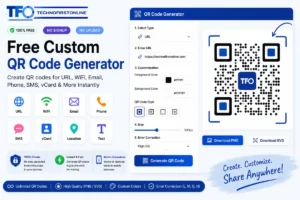
Use our Free Custom QR Code Generator to create QR codes for URL, WiFi, Email, Phone, SMS & vCard instantly. No signup. No upload. 100% free & browser-based.
Price Currency: $
Operating System: All
Application Category: UtilitiesApplication