
Free Remove Background Tool Online
Free Remove Background Tool – Remove Image Background Online
Drag & drop your image here or browse file
Supports JPG, PNG, WEBP — up to 10MB
Removing background, please wait...
Original
Background Removed
Processing happens locally in your browser using an on-device AI model. First run may take a few seconds to load the model (~15–20MB, cached after).



Remove Background Without Photoshop
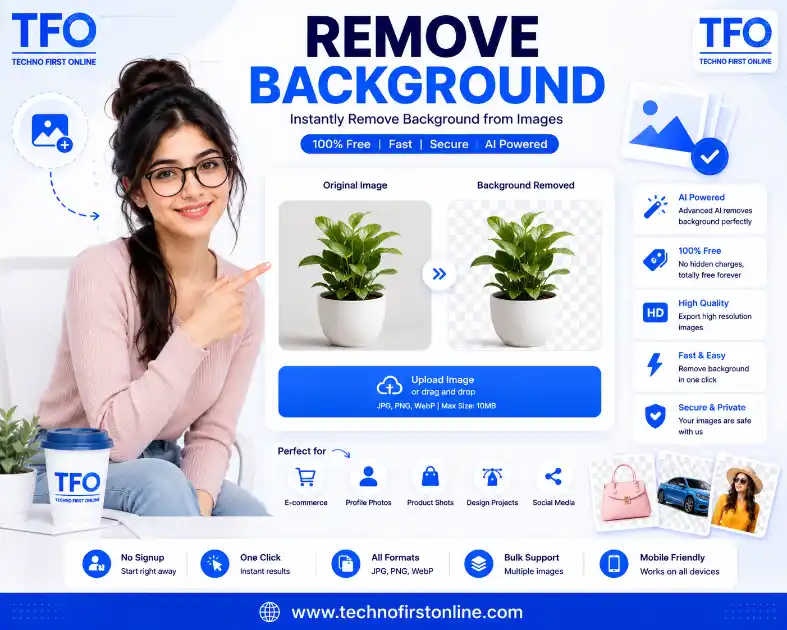
Upload your image to the Remove Background Tool let it process the image, and download the result with the unwanted background removed. For the best results, use a clear, high-quality image with the subject clearly visible.
Free Remove Background Tool Online
Removing the background from an image can make a huge difference when you are creating product images, social media graphics, website banners, profile pictures, or marketing materials. The problem is that doing it manually in Photoshop or another professional editor can take time, especially when you only need a quick and clean result.
Our Free Remove Background Tool makes the process much simpler. You can remove the background from an image online and create a transparent image without installing complicated editing software. Upload your image, process it with the tool, and use the resulting image wherever you need it.
Whether you are working with a product photo, portrait, logo, or another type of image, an online background remover can save you from spending several minutes carefully selecting objects and deleting unwanted areas.
Remove Background from Image Online
There are many situations where a normal image isn’t enough. For example, an online store may need a product photo with a clean white or transparent background. A designer may want to place a person on a different background. A social media creator may need a cutout image for a thumbnail or promotional post.
Instead of manually selecting the subject with an editing program, you can use an online background remover to simplify the process.
The basic idea is straightforward. The tool identifies the main subject of the image and separates it from the surrounding background. The unwanted background can then be removed, leaving the subject ready to use in another design.
This is particularly useful when you need to process images quickly. You don’t need advanced photo-editing knowledge, and you don’t have to learn complicated selection tools just to remove a background.
After removing the background, you may also need to adjust the image dimensions or reduce its file size before using it on a website or social media platform. Our Image Resizer & Compressor can help you resize an image to the required dimensions while reducing unnecessary file size. This is particularly useful for product images, website graphics, and images that need to load quickly on mobile devices.
How to Remove Background from an Image
Using an online tool is usually much easier than editing an image manually. The exact interface may vary, but the general process is simple.
1. Upload Your Image
Start by selecting the image you want to edit. A clear image with a visible subject generally gives better results.
2. Let the Tool Process the Image
Once the image has been uploaded, the background removal process can identify the primary subject and separate it from the surrounding areas.
3. Check the Result
Take a quick look at the processed image. Pay particular attention to fine details such as hair, product edges, clothing, and other areas where the subject meets the background.
4. Download the Result
If the result looks good, download the processed image and use it in your project.
For the best results, start with an image where the subject is reasonably clear and isn’t heavily blended into the background.
Free Background Remover for Quick Image Editing
A major advantage of an online background remover is convenience. You may not need a complete image-editing application if your only goal is to remove an unwanted background.
This can be helpful for students, bloggers, small businesses, marketers, social media managers, photographers, and website owners.
For example, a small business owner can prepare a product image for an online store without opening a professional graphics application. A blogger can create a featured image by placing a person or object over a custom background. A social media creator can prepare a cutout for a post or thumbnail.
The goal isn’t to replace every professional editing application. Instead, a simple background removal tool is useful when you want to complete one specific task quickly.
Create Transparent Background Images
One of the most common reasons people remove an image background is to create a transparent image.
A transparent background allows the subject to be placed over different colors, images, layouts, or website sections without showing the original background around it.
For example, imagine you have a product photographed against a table. If you remove the background and save the subject with transparency, you can place that product on a website banner, advertisement, catalog, or social media graphic.
Transparent images are also useful for:
- Product photography
- Logos and brand graphics
- Website design
- Social media posts
- YouTube thumbnails
- Presentations
- Online catalogs
- Digital advertisements
- Marketing materials
When transparency is required, PNG is commonly used because it can preserve transparent areas.
Large image files can sometimes slow down webpages, especially when several high-resolution images are used on the same page. After removing an unwanted background, you can use our Image Compressor to reduce the file size while keeping the image suitable for web use. This can be helpful when preparing product photos, blog images, thumbnails, and other graphics for online publishing.
Remove Background Without Photoshop
Photoshop is an extremely powerful image-editing application, but you don’t always need professional editing software for a simple task.
If you only need to remove background from an image, using an online tool can be much faster than opening a large editing application and manually selecting the subject.
Manual background removal usually involves selecting edges, adjusting the selection, refining difficult areas, deleting the background, and exporting the final file. That process can be worthwhile for complex professional projects, but it may be unnecessary for a quick image.
An online background removal tool is more convenient when speed and simplicity are the priority.
That said, the quality of any automatic background removal depends on the original image. Images with complicated backgrounds, poor lighting, similar colors between the subject and background, or very fine details may require additional editing.
Where Can You Use a Background Remover?
There are countless everyday situations where removing an image background can be useful.
E-commerce Product Images
Online stores often need clean product photographs. Removing a distracting background can make the product easier to see and can help maintain a consistent visual style across a product catalog.
Social Media Content
Creators frequently use cutout images in Instagram posts, Facebook graphics, advertisements, and promotional designs. A transparent subject can be combined with a completely different background.
Website Design
Website owners may need isolated product photos, team photographs, profile images, or other graphics. Removing the original background gives designers more flexibility.
Marketing and Advertising
Advertisements often combine several visual elements into one composition. A background-free subject can be positioned wherever the design requires.
Presentations
A transparent image can also make business presentations, educational slides, and project documents look cleaner.
Tips for Better Background Removal Results
The quality of the original image plays an important role in the final result. If you want a cleaner background removal, keep a few simple things in mind.
Use a clear image. A sharp photograph generally provides more useful detail than a heavily compressed or blurry image.
Choose good lighting. When the subject is clearly visible, separating it from the background becomes easier.
Avoid extremely busy backgrounds. Objects that overlap the main subject can make automatic background removal more difficult.
Check fine details. Hair, thin objects, transparent materials, and small edges may need extra attention after processing.
Use the right output format. If you need transparency, make sure your final image format supports it.
These simple steps can improve the usefulness of the final image without requiring advanced editing skills.
Free Online Background Removal for Different Image Types
A background remover can be useful with many different types of images.
For product photographs, it can help isolate shoes, electronics, clothing, accessories, furniture, or other products.
For portraits, it can separate a person from the original environment so the subject can be used in a new design.
For creative projects, removing the background can make it easier to combine multiple objects into a single composition.
Even simple photographs can become more versatile when the subject is separated from its original surroundings.
However, no automatic tool should be expected to produce identical results on every image. The complexity of the photograph, contrast, lighting, subject edges, and background all affect the outcome.
Why Use an Online Remove Background Tool?
The biggest benefit is convenience.
You don’t need to spend time learning complicated selection techniques. You can work directly from your browser and use the tool when you need it.
An online solution can also be useful when you’re working from different computers because you don’t necessarily need to install a dedicated image-editing application.
For occasional image editing, this can be a much simpler workflow.
The tool is especially useful when the task is straightforward: take an image, remove the unwanted background, and prepare the subject for another design.
People Also Read









stylish text generator

How to change to sentence case online
How to Automatically Change Capital Letters to Lowercase
Grammarly Word Count vs Free Word Counter
word counter google docs — How to Check Word Count
Word Count Checker — Check Word Count in PDFs & Documents
Free Character Counter Online — Count Letters & Spaces
How to Word Counter Online Free
Other Useful Tools















Frequently Asked Questions
Upload your image to a background removal tool and allow the tool to process it. Once the background has been removed, review the result and download the finished image.
You can use a free online background remover instead of manually editing the image in professional software. Upload your image, process it, and download the resulting file if the output meets your requirements.
The best tool depends on the type of image and the result you need. A useful background remover should be simple to operate, produce clean results, and make the final image easy to download and use.
Yes. Online background removal tools allow you to process images directly in a web browser, making them convenient for quick editing tasks.
Remove the existing background and export the image in a format that supports transparency, such as PNG. A transparent background allows the subject to be placed over other colors or images.
Yes. If you only need to remove an image background, an online background remover can be a simpler alternative to using professional image-editing software.
### Choosing the Right Image Format After Removing a Background
After you remove the background from an image, choosing the right file format is important, especially when you need to preserve transparency or maintain image quality. PNG is a common choice when transparency is required, while modern formats such as WebP and AVIF can also support transparency with better compression in many situations. For a detailed explanation of image formats, transparency, browser support, and their different use cases, see the official [MDN Web Docs guide to image file types and formats]This can help you choose the most suitable format after removing the background from your image.
Start Removing Your Image Background
A clean image can make your website, product listing, social media post, or marketing design look much more professional. You don’t always need complicated software to achieve that.
With a simple Remove Background Tool, you can separate the main subject from its original surroundings and prepare the image for your next project.
Upload your image, remove the unwanted background, check the result, and download the finished image. Whether you’re preparing product photos, creating social media graphics, designing a website, or simply editing a personal photograph, removing the background can give you much more flexibility.
If you frequently work with images, you can also combine background removal with other image utilities such as an Image Resizer & Compressor or an image format converter to prepare files for websites and digital platforms.
The simpler the workflow, the more time you can spend on the actual design rather than manual image editing.
Free Remove Background Tool – Remove Image Background

Remove background from images online for free. Use our fast background remover to create transparent PNG images without installing software.
Price Currency: $
Operating System: All
Application Category: Utilities Application