Smart IT tools
Quick Answer:
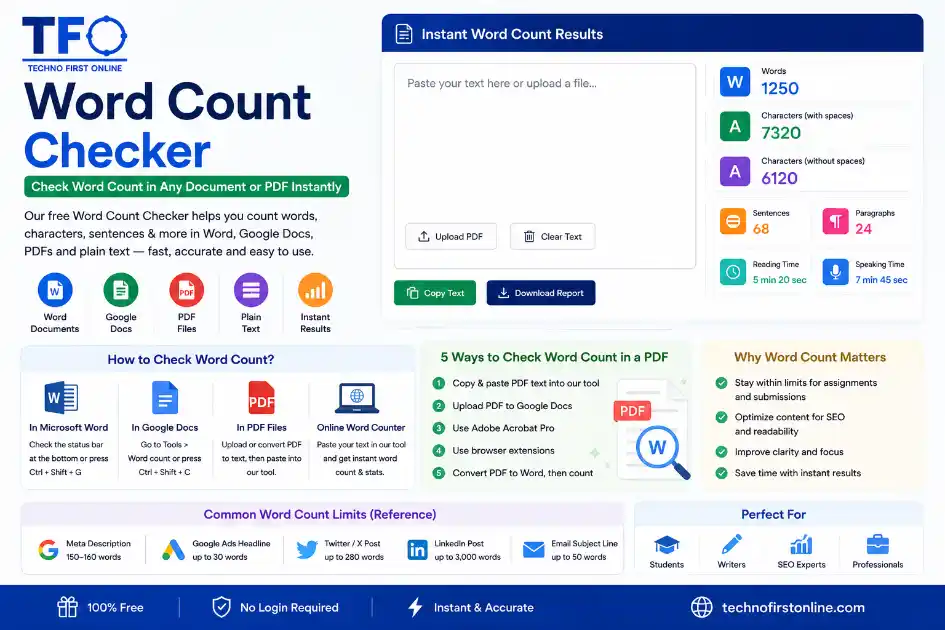
A word count checker instantly calculates the number of words, characters, sentences, and paragraphs in any document, PDF, or text input.
Word Count Checker — Check Word Count in PDFs & Documents
You just finished writing a report, an essay, or a proposal. It looks good.
But before you send it off, there is one thing left to check — the word count.
If you are working in Microsoft Word or Google Docs, this is easy enough. But
what if your document is a PDF? What if you are writing in Notion, an email
client, or a plain text editor that has no built-in counter?
That is where a reliable word count checker comes in.
In this guide, we will cover everything — how to check the number of words in
any document type, the best methods for counting words in a PDF, how to use
a free word count calculator online, and practical tips for staying on track
with word count targets in your writing.
Let us get straight into it.
What Is a Word Count Checker?
A word count checker is a tool — either built into a writing application or
available as a standalone online tool — that counts the total number of words
in a piece of text.
A good word count checker does more than just give you a single number. It
typically shows:
- – Total word count
- – Character count (with and without spaces)
- – Sentence count
- – Paragraph count
- – Estimated reading time
- – Estimated speaking time
The fastest and most flexible option is an online word count calculator that
works with any text you paste into it — no matter where that text originally
came from. You do not need to be in a specific app or format. Just paste and
check.
👉 Try the free word count checker at TechnoFirstOnline: https://technofirstonline.com/grammarly-word-count/
How to Check Word Count in Microsoft Word
Microsoft Word has one of the most visible and reliable built-in word count
checkers available. Here is how to access it:
Method 1 — Status Bar at the Bottom
When you open any document in Word, look at the very bottom of the screen.
You will see a bar that shows “Words: [number]” on the left side. This updates
live as you type.
Click on that number and a detailed word count box opens, showing:
- – Pages
- – Words
- – Characters (no spaces)
- – Characters (with spaces)
- – Paragraphs
- – Lines
Method 2 — Review Tab
Go to the Review tab in the top menu ribbon, then click Word Count. The same
detailed panel appears with full statistics.
Method 3 — Keyboard Shortcut
On Windows: press Ctrl + Shift + G
On Mac: press Command + Shift + G
This opens the word count box instantly without navigating any menus.
Counting a Selected Section Only
If you only want to count words in a specific paragraph or section — not the
whole document — simply highlight that section first. The word count in the
status bar will change to show the count for your selection only.
This is useful for academic submissions where an executive summary or abstract
needs to stay within a specific limit separately from the main document.
How to Check Word Count in Google Docs
Google Docs has a straightforward word counter built right in. Here is how
to use it across different devices.
On Desktop (Browser)
1. Open your document at docs.google.com
2. Click Tools in the top menu
3. Select Word count
4. A popup shows your total words, characters with spaces, and characters
without spaces
Keyboard Shortcut
On Windows: Ctrl + Shift + C
On Mac: Command + Shift + C
This is the fastest way — no menus needed, just two keypresses.
Display Word Count While Typing
Inside the Word Count popup, there is a checkbox at the bottom:
“Display word count while typing.”
Tick this box and a small live counter appears permanently in the bottom-left
corner of your document. It updates every time you add or delete a word —
so you never have to open the panel again.
This is particularly helpful when writing essays, articles, or blog posts with
a target word count.
On Mobile (iOS and Android)
1. Open your document in the Google Docs app
2. Tap the three dots icon in the top-right corner
3. Tap Word count
The popup shows total words, characters, and characters without spaces. Note
that the mobile version does not have the “display while typing” option —
that is a desktop-only feature.
How to Check Word Count in a PDF — 5 Methods
This is where most people run into difficulty. PDFs do not have a built-in
word counter the way Word or Google Docs do. The reason is simple — a PDF is
a fixed-layout format designed for viewing and printing, not editing.
But there are several reliable ways to get the word count from a PDF. Here
are five methods, from quickest to most thorough.
Method 1 — Copy and Paste into an Online Word Count Checker (Fastest)
This works for most standard PDFs.
1. Open your PDF in any viewer (Adobe Reader, Chrome, Preview on Mac)
2. Press Ctrl + A (Windows) or Command + A (Mac) to select all text
3. Press Ctrl + C or Command + C to copy
4. Go to https://technofirstonline.com/grammarly-word-count/
5. Paste your text into the input box
6. Your word count, character count, and full stats appear instantly
This is the quickest method for standard PDFs where the text is selectable.
No download, no conversion, no account — just paste and read.
Method 2 — Open the PDF in Google Docs
Google Drive can open most PDFs as editable Google Docs files. Once open,
you can use the built-in word counter.
Steps:
1. Go to drive.google.com
2. Upload your PDF file
3. Right-click the uploaded file and select “Open with Google Docs”
4. Google will convert the PDF into an editable document
5. Click Tools → Word count (or Ctrl + Shift + C)
This method works well for text-based PDFs. Formatting may shift slightly
during conversion, but the word count will be accurate.
Method 3 — Convert PDF to Word, Then Count
If you need a more precise word count — especially for long documents or
reports — converting to Word first gives you the most reliable result.
Free online converters that handle this well include:
- – Smallpdf (smallpdf.com)
- – ilovepdf (ilovepdf.com)
- – Adobe Acrobat Online (acrobat.adobe.com)
Steps:
1. Upload your PDF to one of the converters above
2. Download the converted .docx file
3. Open it in Microsoft Word
4. Check the word count via Review → Word Count
This is the most accurate method for complex PDFs with tables, headers,
and footnotes.
Method 4 — Adobe Acrobat Pro (Desktop App)
If you have access to Adobe Acrobat Pro (not the free Reader):
1. Open your PDF in Acrobat Pro
2. Go to Tools → Export PDF → Microsoft Word
3. This converts the PDF to a Word file
4. Open the Word file and check the count using Review → Word Count
Adobe Acrobat Pro gives you OCR capability too, which means it can extract
and count words even from scanned PDF documents.
Method 5 — Word Counter Plus (Chrome Extension)
For users who regularly need to count words in PDFs inside the Chrome browser:
1. Install the Word Counter Plus extension from the Chrome Web Store
2. Open your PDF in Chrome
3. Press Ctrl + A to select all text
4. Right-click and select “Word Counter Plus”
5. The extension shows the word count for the selected text
This is a useful shortcut for professionals who work with a lot of PDF
documents in their browser workflow.
What About Scanned PDFs?
Scanned PDFs are images of documents — not actual text. Standard copy-paste
methods will not work because there is no selectable text in the file.
For scanned PDFs, you need OCR (Optical Character Recognition) software to
first convert the image into readable text. Tools that can do this include:
- – Adobe Acrobat Pro (built-in OCR)
- – Smallpdf OCR feature
- – Google Drive (it applies basic OCR when opening PDFs as Google Docs)
Once OCR has converted the scanned content to text, you can use any word
count calculator to get your number.
How to Use an Online Word Count Calculator
An online word count calculator is the most flexible option for checking word
counts — because it works regardless of where your text came from.
Here is exactly how to use the one at TechnoFirstOnline:
1. Go to: https://technofirstonline.com/grammarly-word-count/
2. Type directly into the input box — OR — paste text from any source
(Word, Google Docs, a PDF you have copied from, an email, a web page,
a social media draft — anything)
3. Your word count, character count, sentence count, and paragraph count
appear in real time as you type or paste
4. No buttons to click. No page refresh. No signup. Completely free.
The tool works as a word counter, a character counter, and a number of word
checker — all in one place.
Why Accurate Word Count Matters for Different Types of Writing
Tracking word count precisely is not just about hitting a number. Different
types of writing have different reasons for needing an accurate word count.
Here is a breakdown:
Academic Writing
Universities, colleges, and schools are strict about word limits. Go over by
too much and your submission may be penalised. Fall well short and your work
risks being considered incomplete.
Most institutions are clear about whether footnotes, headers, captions, and
bibliography sections are included in the stated word count. Knowing your exact
number — not an approximation — helps you plan each section of your work
properly.
Blog Posts and SEO Content
In the world of content writing, word count targets are closely linked to
SEO performance. Research from Backlinko consistently shows that longer,
comprehensive content tends to rank higher on Google for competitive keywords.
Typical benchmarks that content writers work toward:
- – Short-form blog post : 800 – 1,200 words
- – Standard blog post : 1,200 – 1,800 words
- – Long-form SEO content : 2,000 – 3,000 words
- – Cornerstone content : 3,000 – 5,000+ words
A reliable word count calculator lets you track exactly where you are against
these targets without interrupting your writing.
Freelance Writing and Copywriting
Many freelance writers charge on a per-word basis. Accuracy here is not just
a professional habit — it directly affects your income.
Using an accurate number of word checker before you send an invoice removes
any ambiguity and builds trust with your clients.
Journalism and Publishing
News publications, magazines, and book publishers all work to specific word
counts for features, columns, and chapters. Going significantly over or under
these targets causes scheduling and layout problems for editors.
A word count checker helps you hit the brief — not just get close to it.
Legal and Business Documents
Contracts, proposals, tenders, and reports are often written to agreed-upon
word count specifications. An overly long document can waste a client’s time.
An underdeveloped one can look thin and unprepared.
Tips for Managing Word Count More Effectively
A word count checker tells you where you are. These tips help you get where
you need to be.
Set a Target Before You Start Writing
Before you write a single word, decide on your target word count. This shapes
how much detail you go into, how many sections you plan, and how long each
point needs to be. Writers who set targets before they begin almost always
produce tighter, better-structured work.
Outline First, Write Second
A quick outline — even five bullet points — helps distribute your word count
intentionally across your document. Instead of writing three sections of 1,500
words each only to discover you needed a fourth section, you plan for it first.
Write the Full Draft Without Stopping to Count
Constantly checking your word count mid-draft interrupts your flow and slows
you down. Write the complete first draft without stopping. Then open your word
count checker to see where you stand and adjust in your edit.
Cut Before You Add
If you are over your target, always look for what to remove before adding more.
Common places to cut:
- – Long introductions that take too long to reach the point
- – Repeated ideas already made earlier in the document
- – Adverbs and filler phrases that add length but not meaning
- – Passive voice constructions that use more words than necessary
Use Section-Level Word Counts
For long documents, track the word count of each major section separately —
not just the overall total. This prevents one section from ballooning at the
expense of another. Select the text of each section and check the count
individually in your word count checker.
Does Word Count Affect SEO Rankings?
This is a question a lot of content writers and bloggers ask, so it deserves
a straight answer.
No — word count is not a direct Google ranking factor. Google’s own Search
Advocate John Mueller has confirmed this more than once. Simply writing more
words does not guarantee better rankings.
However, here is what the data does show:
- – Longer content tends to cover topics more comprehensively, which better
satisfies user search intent - – In-depth content naturally includes a broader range of relevant keywords
and related terms - – Longer pages tend to attract more backlinks because they serve as useful
references for other writers - – More thorough content keeps readers on the page longer — which is a
positive engagement signal
The key takeaway: target word count because of content depth and user value,
not to game an algorithm. Use your word count calculator as a planning tool,
not a ranking shortcut.
For a deeper read on word count and SEO, Yoast’s guide on the topic is one
of the most balanced and well-researched resources available:
https://yoast.com/blog-post-word-count-seo/
Final Thoughts
Whether you are counting the words in a Microsoft Word document, a Google Doc,
a PDF you received as an attachment, or text you wrote in a plain text editor —
the right word count checker makes it instant, accurate, and effortless.
For documents with built-in counters, use those tools directly. For everything
else — especially PDFs and text from platforms without word tracking — an
online word count calculator is the quickest and most reliable solution.
The free word count checker at TechnoFirstOnline works with any text from
any source. No file upload required, no login, no limits. Just paste your
text and get your numbers in real time.
👉 Check your word count now: https://technofirstonline.com/grammarly-word-count/

TechnoFirstOnline provides powerful free online tools, expert tutorials, and smart digital resources to simplify everyday tasks. Explore SEO, image, AI, PDF, and productivity tools designed for everyone.
Other Useful Tools



People Also Read


Frequently Asked Questions
A word count checker is a tool that calculates the total number of words in
any piece of text. Most word count checkers also show character count, sentence
count, paragraph count, and reading time. Online word count checkers let you
paste any text — from a document, PDF, email, or any other source — and get
your stats instantly.
The quickest method is to open your PDF, press Ctrl + A to select all text,
copy it, then paste it into a free online word count checker. For a more
detailed count, you can also upload your PDF to Google Drive, open it with
Google Docs, and use the built-in word count tool under the Tools menu.
On Windows, press Ctrl + Shift + C to open the word count panel in Google
Docs. On Mac, the shortcut is Command + Shift + C. This shows your total
word count, characters with spaces, and characters without spaces.
In Microsoft Word, the word count is always visible in the status bar at the
bottom of the screen. You can also access a detailed breakdown by going to
Review → Word Count, or by pressing Ctrl + Shift + G on Windows (Command +
Shift + G on Mac).
Yes. The word count calculator at TechnoFirstOnline is completely free to use
with no account or login required. Paste any text into the tool and it instantly
shows your word count, character count, sentence count, and paragraph count in
real time.
Word count is connected to content depth. Longer, well-structured blog posts
tend to cover topics more thoroughly, which better satisfies what a user is
looking for when they search. Research from SEO tools like Backlinko shows
that top-ranking pages tend to be more detailed and comprehensive than shorter
ones. A word count checker helps you plan and track your content length so your
posts match the depth that readers and search engines expect.
No. Notion does not have a built-in word count feature. The simplest workaround
is to copy your text from Notion and paste it into a free online word count
checker to get your total.