Smart IT tools
Quick Answer:
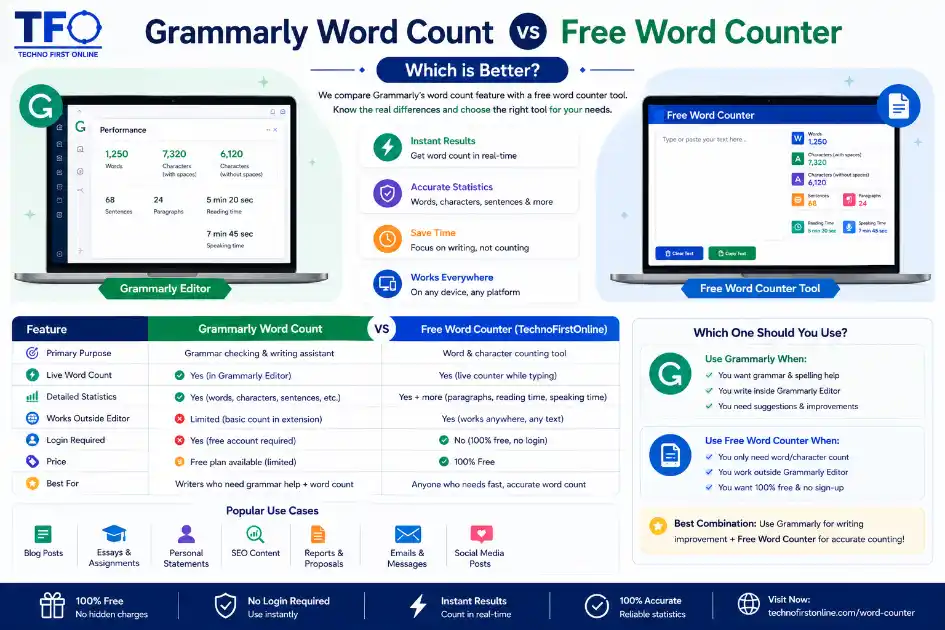
Grammarly Word Count vs Free Word Counter — Which is Better?
Grammarly Word Count vs Free Word Counter — Full Comparison
Here is a situation most writers have been in: you are using Grammarly to edit
your article or essay and you realise you need to check the word count. It is
right there at the bottom of the screen. Simple enough.
But then you wonder — is Grammarly actually the best tool for this? Or should
you be using a dedicated word counter instead?
It is a fair question. Grammarly is a powerful writing tool. But when it
comes to word and character counting specifically, a standalone free word
counter often does a better job — faster, with more detail, and without
requiring a login.
This guide breaks down exactly how the Grammarly word count feature works,
where its limits are, and when a free word counter is the smarter choice.
By the end, you will know exactly which tool to reach for — and when.
What Is the Grammarly Word Count Feature?
Grammarly is first and foremost a grammar checking and writing improvement
tool. Word count is included as part of the Grammarly Editor experience —
but it is a supporting feature, not the main event.
When you write inside Grammarly’s web editor at app.grammarly.com, you can
see a live word count displayed in the bottom-left corner of the screen.
Clicking on it opens a more detailed statistics panel showing:
- – Total word count
- – Character count (with spaces)
- – Character count (without spaces)
- – Sentence count
- – Paragraph count
- – Estimated reading time
- – Estimated speaking time
This full breakdown is only available inside the Grammarly Editor itself.
If you are using the Grammarly browser extension on Gmail, Google Docs, or
another third-party platform, the experience is more limited — you may see
a basic count by clicking the Grammarly icon, but not the full stats view.
The word count in Grammarly is accurate and updates in real time. For most
writers who are already working inside the Grammarly Editor, it is a
perfectly useful tool.
How to Find Word Count in Grammarly — Step by Step
Not everyone knows where to look. Here is exactly how to access the word
count in each version of Grammarly.
In the Grammarly Web Editor (app.grammarly.com)
1. Open or create a document in the Grammarly Editor
2. Look at the bottom-left corner of the writing area
3. You will see a small word count number displayed there
4. Click on that number to open the full performance statistics panel
The panel shows your complete stats — words, characters (both with and
without spaces), sentences, paragraphs, reading time, and speaking time.
In the Grammarly Desktop App (Windows and Mac)
The desktop app mirrors the web editor experience. Open any document and
the live word count appears in the same position at the bottom of the
writing area. Click it to expand the full stats view.
Using the Grammarly Browser Extension
When writing inside another platform — Gmail, LinkedIn, a web form, or
a content management system — with the Grammarly extension active, you
can sometimes access basic stats by clicking the Grammarly button
within the text field.
However, this view is limited compared to the full editor. For a
complete word and character breakdown, copying your text into the
Grammarly Editor at app.grammarly.com is the most reliable method.
In Google Docs with Grammarly Active
Grammarly does not replace Google Docs’ own word count feature. When
writing in Google Docs with the Grammarly extension running, use
Google Docs’ native word count tool (Tools → Word Count, or
Ctrl + Shift + C on Windows). The two tools run alongside each other
without conflicting.
Grammarly Word Count — What It Does Well
To be fair to Grammarly, its word count feature does several things
genuinely well.
It Is Already There While You Write
If you are editing inside the Grammarly Editor, you do not need to
switch tabs or open a separate tool. The count is right there, live,
at the bottom of your screen. That convenience matters when you are
in the middle of a writing session.
The Performance Report Goes Beyond Numbers
Grammarly includes a Performance Report that gives writers more than
just a word count. You get:
- – A text score out of 100 based on grammar, clarity, and style
- – Readability score
– Vocabulary diversity (how varied your word choices are) - – Percentage of rare words used
For writers who want to improve their writing quality — not just
track their word count — this extended analysis is genuinely valuable.
The report can also be downloaded as a PDF summary from within the editor.
The AI Suggest Cuts Feature (Pro Users)
Grammarly Pro users have access to an AI-powered feature that actively
helps reduce word count. In the editor, clicking the green lightbulb icon
and selecting “Suggest cuts” prompts Grammarly to identify sentences and
phrases that can be removed without losing meaning.
This is particularly useful for:
- – University personal statements and college application essays with
tight character or word limits - – Academic abstracts that must stay under 250–300 words
- – Business emails and reports where brevity is expected
- – Social media bios and LinkedIn summaries
Where the Grammarly Word Count Falls Short
Despite its strengths, Grammarly’s word count feature has real limitations
that matter depending on how and where you write.
You Need an Account to Use It
Grammarly requires a free or paid account to access the editor. If you
simply want to paste a paragraph and check how many words it contains,
creating and logging into an account adds unnecessary friction.
A standalone free word counter has no login barrier at all.
It Only Works Inside Grammarly’s Own Editor
The full word count experience — with all stats visible — is only
available inside app.grammarly.com or the desktop app. If your text
is in Notion, WordPress, a plain text editor, an SMS draft, or a
PDF you have copied from, Grammarly is not the right tool.
Daily and Monthly Checking Limits Apply
According to Grammarly’s official support documentation, both free
and Premium users can check up to 50,000 words per day and up to
150,000 words in any 30-day period. While these limits are generous
for most users, they are limits nonetheless.
A dedicated free word counter has no usage limits of any kind.
Document Size Restrictions
The Grammarly Editor supports documents of up to 100,000 characters
(including spaces) at a time. Files uploaded to the editor cannot
exceed 4 MB. Supported formats are limited to .doc, .docx, .odt,
.txt, and .rtf.
If you are working with a large document, a scanned PDF, a Markdown
file, or content from a platform Grammarly does not integrate with,
these restrictions become relevant quickly.
Character Count Precision for Platform Limits
Grammarly shows character counts, but it is not specifically designed
for the kind of precision character checking that SEO writers and
social media managers need daily — checking whether a meta description
is exactly 155 characters, whether a Twitter post is under 280, or
whether a Google Ads headline fits in 30 characters.
A dedicated word counter that updates in real time with no loading
delay is cleaner and faster for this type of precision work.
Free Word Counter — What It Does Better
A standalone free word counter online is not trying to compete with
Grammarly as a writing tool. It is doing one thing — counting — and
doing it exceptionally well.
Here is where a free word counter genuinely outperforms Grammarly’s
built-in feature.
No Login, No Account, No Barriers
Open the tool. Paste your text. Your count is already on screen.
That is the entire process. No account creation, no email confirmation,
no monthly usage limits, no subscription reminders.
For writers, students, or professionals who just need a quick count
right now, this zero-friction experience is the biggest practical
advantage a free word counter has over Grammarly.
Works With Text From Any Source
Copy text from a PDF. Paste a blog draft from Notion. Pull a section
from a Google Doc. Take an excerpt from a Word file. Text from a
WhatsApp message or SMS draft. It does not matter where the text
came from — paste it into a free word counter and it counts it
instantly.
Grammarly is bound to its own editor ecosystem. A free word counter
is platform-neutral by design.
Real-Time Results, No Processing Delay
A good online word counter updates your count with every keystroke.
There is no page loading, no file processing, no waiting. This makes
it ideal for active editing sessions where you are trimming down a
piece to fit a word or character limit and want immediate feedback
on every word you cut.
More Useful for Character-Specific Limits
The free word counter at TechnoFirstOnline shows:
- – Words
- – Characters with spaces
- – Characters without spaces
- – Sentences
- – Paragraphs
- – Estimated reading time
- – Estimated speaking time
All of this in one view, updating live. For SEO professionals,
copywriters, and social media managers who constantly work with
platform-specific character limits, this is more immediately useful
than opening the Grammarly Editor.
👉 https://technofirstonline.com/grammarly-word-count/
Grammarly Word Count vs Free Word Counter — Head to Head Comparison
Here is a direct, honest comparison of both tools across every dimension
that actually matters for writers.
| Feature | Grammarly Word Count | Free Word Counter |
| Requires account / login | Yes | No |
| Works without internet | No | No (browser-based) |
| Live word count | Yes (in editor) | Yes (always) |
| Character count (with spaces) | Yes | Yes |
| Character count (no spaces) | Yes | Yes |
| Sentence count | Yes | Yes |
| Paragraph count | Yes | Yes |
| Reading time estimate | Yes | Yes |
| Speaking time estimate | Yes | Yes |
| Performance / quality score | Yes (unique to Grammarly) | No |
| Grammar suggestions | Yes (core feature) | No |
| AI suggest cuts | Pro users only | No |
| Daily usage limits | 50,000 words/day | None |
| Monthly usage limits | 150,000 words/month | None |
| Works with any text source | Editor only | Any text |
| Works with PDFs (text-based) | Copy-paste method | Copy-paste method |
| Completely free | Limited (Pro = paid) | Yes, fully free |
| Ideal for grammar checking | Yes | No |
| Ideal for quick word counts | Slower (needs login) | Yes |
| Ideal for character precision | Basic | Yes |
The verdict from this table is clear: Grammarly wins for writing and
editing. A free word counter wins for fast, precise, frictionless counting.
Personal Statement Word Counter — Why Students Need Both
One area where this comparison gets particularly important is for students
writing university personal statements and college application essays.
The stakes are high, the word and character limits are strict, and every
single character counts.
Here is what the key limits look like in 2025:
UK University Applications (UCAS)
UCAS personal statements have a maximum of 4,000 characters including
spaces. For applications submitted from September 2025 onwards for 2026
university entry, the format changes to three structured questions — but
the total 4,000-character limit stays the same, with each answer requiring
a minimum of 350 characters.
This means character count precision is critical. Going even slightly over
the limit means your submission is cut off or rejected at the form stage.
A personal statement word counter that tracks characters in real time —
including spaces — is essential for students writing UCAS applications.
US College Applications (Common App)
The Common App personal statement has a firm 650-word maximum. The ideal
range recommended by most admissions advisors sits between 500 and 650
words — close to the maximum but not over it.
A word counter that updates live as you write is the simplest way to stay
within this range without constantly interrupting your drafting to check.
Medical School Applications
Medical school applicants in the US face some of the tightest character
limits of all:
- – AMCAS personal statement: 5,300 character maximum (no exceptions)
- – AACOMAS personal statement: 5,300 character maximum
- – TMDSAS personal statement: 5,000 character maximum
These systems have zero tolerance — go over by one character and the
form refuses to let you submit. A character counter that gives you a
live running total is not optional here. It is essential.
How to Use Both Grammarly and a Free Word Counter for Personal Statements
The most effective approach for personal statement writers is to use
both tools for what they are each best at:
1. Write and edit your personal statement inside Grammarly or a word
processor. Use Grammarly’s grammar checking and clarity suggestions
to improve the quality of your writing.
2. When you are editing for length — trimming to fit under the character
limit — paste your text into a free word counter. Watch the character
count update in real time as you cut words. No need to stay inside
Grammarly’s editor to check this.
3. If you have Grammarly Pro, use the “Suggest cuts” AI feature to find
phrases that can be shortened or removed. Then re-check your character
count in the free tool.
4. Final check: paste your finished personal statement into the personal
statement word counter and confirm you are within the limit before
copying it into your application form.
This workflow gives you the grammar quality of Grammarly and the precision
character counting of a dedicated tool — the best of both.
👉 Check your personal statement character count here:
https://technofirstonline.com/grammarly-word-count/
When to Use Grammarly Word Count
Use the Grammarly word count feature when:
- – You are already writing and editing inside the Grammarly Editor
- – You want a grammar check and word count at the same time
- – You are a Pro user and want to use AI suggestions to cut word count
- – You want the Performance Report with readability and vocabulary analysis
- – You are writing a longer piece (article, essay, report) where quality
feedback matters as much as the word number
When to Use a Free Word Counter Instead
Use a dedicated free word counter when:
- – You need a quick count with zero login or account friction
- – Your text comes from outside Grammarly (PDF, Notion, email, plain text)
- – You are checking character limits for SEO titles, meta descriptions,
or social media posts - – You are writing a UCAS personal statement and need precise real-time
character tracking - – You are working on an application essay with a firm word limit and
want to track every word as you cut - – You have reached Grammarly’s daily usage limit and need to keep working
- – You want a tool that works identically on desktop, tablet, and mobile
without any account
Do You Need Grammarly Premium for Word Count?
No. Grammarly’s word count feature is available on the free plan.
You do not need to pay for Grammarly Pro to access the live word counter,
the character count, sentence count, paragraph count, or the reading time
and speaking time estimates.
What you do need Grammarly Pro for:
- – The AI-powered “Suggest cuts” feature
- – Plagiarism detection
- – Advanced style and tone suggestions
- – Genre-specific writing feedback
- – Full performance report downloads
For pure word and character counting, the free Grammarly plan is sufficient.
And for even faster, frictionless counting, a free standalone word counter
needs no plan at all.
Final Verdict — Which Is Better?
Honestly? Neither tool is universally better. They are designed for
different purposes, and the smarter approach is to use both.
Think of it this way:
Grammarly is your writing coach. It helps you write better — fixing
grammar, improving clarity, suggesting stronger word choices, and
giving you a quality score on your finished work. The word count feature
comes along for the ride, and it is useful when you are already in
the editor.
A free word counter is your measuring tape. It does one thing with
zero friction — tells you exactly how many words and characters you
have, right now, from any text, on any device, with no barriers.
Use Grammarly when you are in writing and editing mode. Use a free
word counter when you need precision counts fast — especially for
personal statements, application essays, SEO content, and social media
copy where character limits are non-negotiable.
The best writers keep both tools in their workflow. They cost nothing
to use together.
👉 Start counting instantly — no login needed:
https://technofirstonline.com/grammarly-word-count/

TechnoFirstOnline provides powerful free online tools, expert tutorials, and smart digital resources to simplify everyday tasks. Explore SEO, image, AI, PDF, and productivity tools designed for everyone.
See More tool



People Also Read


Frequently Asked Questions
Yes. Grammarly’s word count feature is available on the free plan. You do not
need a Grammarly Pro or Premium subscription to see your word count, character
count, sentence count, or reading time. These stats are visible inside the
Grammarly Editor at app.grammarly.com at no cost.
In the Grammarly web editor and desktop app, the word count appears in the
bottom-left corner of the writing area. It updates live as you type. Click on
the number to open the full statistics panel, which shows characters, sentences,
paragraphs, and estimated reading and speaking time.
Yes, for most purposes Grammarly’s word count is accurate and consistent with
other standard tools like Microsoft Word and Google Docs. It counts each
space-separated unit as one word, which is the universal standard. Minor
discrepancies of one or two words can sometimes occur when pasting formatted
text from external sources.
A personal statement word counter is a tool that tracks the word and character
count of your university application essay in real time. For UCAS applications,
the personal statement has a 4,000 character limit including spaces. For US
Common App applications, the limit is 650 words. A precise counter helps you
stay within these limits before submitting.
Use both. Write and edit your personal statement in Grammarly to improve grammar
and clarity. When trimming down to fit within the character limit, paste your
text into a free word counter for precise, real-time character tracking without
needing to stay inside the Grammarly Editor. The two tools work better together
than either does alone.
Yes. According to Grammarly’s official support documentation, both free and
Premium users can check up to 50,000 words per day and up to 150,000 words in
any 30-day period. The Grammarly Editor also supports documents up to 100,000
characters at a time, and uploaded files cannot exceed 4 MB in size.
A free word counter works with any text from any source — no login, no account,
and no usage limits. It is faster for quick counts and more precise for
character-specific work like SEO titles, meta descriptions, social media posts,
and application essay limits. Grammarly’s word count is tied to its own editor
and requires a user account to access.
No. Word counter Grammarly refers to the word count feature built into the
Grammarly Editor — useful when you are already writing inside Grammarly. A
standalone word counter tool is a separate, independent tool that counts words
and characters in any text you paste, from any source, with no login or account
required. Both are useful, but they serve different workflows.