Smart IT tools
Quick Answer:
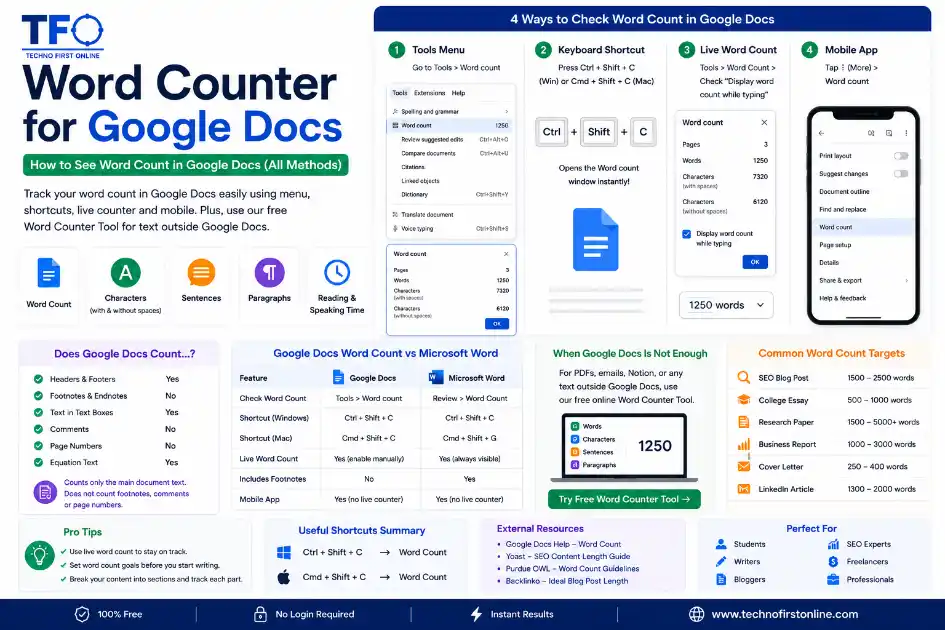
To check word count in Google Docs, go to Tools → Word count or press Ctrl + Shift + C on Windows (Command + Shift + C on Mac). You can also enable a live word counter while typing.
word counter google docs — How to Check Word Count
If you have ever been writing in Google Docs and suddenly wondered, “How many
words have I actually written?” — you are in the right place.
Google Docs has a built-in word counter. It is quick to access, surprisingly
detailed, and — once you know the tricks — it can even sit on your screen
permanently while you write. You never have to stop and check manually again.
But there is a catch: the Google Docs word counter only works inside Google
Docs itself. The moment your text is in a PDF, a plain text file, an email
draft, or a Notion page, that built-in counter is useless.
That is where a standalone word counter for Google Docs and beyond becomes
genuinely useful.
In this guide, we cover everything — every method to check word count in
Google Docs on desktop, mobile, and tablet, along with answers to the
questions that trip most people up.
Why Writers Use Word Count in Google Docs
Before diving into the how-to, it is worth understanding why word count matters
in the first place — because it affects a wider range of people than most
expect.
Here is who relies on a google doc word counter every day:
- – **Students** writing essays, research papers, and university assignments
with strict word limits - – **Bloggers and content writers** hitting SEO word count targets for
articles and guides - – **Journalists** working to editorial word count briefs from their editors
- – **Freelance writers** who bill by the word and need accurate numbers
before submitting work - – **Business professionals** keeping reports, proposals, and presentations
within expected lengths - – **Authors** tracking daily writing goals across chapters of a book
or manuscript
Whatever your reason, Google Docs gives you the tools to track your count
precisely. Here is how to use every one of them.
Method 1 — The Tools Menu (Standard Method)
This is the most straightforward way to check word count in Google Docs.
It works on every browser and every operating system.
Steps:
1. Open your document at docs.google.com
2. Click on Tools in the top menu bar
3. Select Word count from the dropdown menu
4. A popup window appears with your full document stats
The word count popup shows you:
- – Total word count
- – Total page count
- – Character count (with spaces)
- – Character count (without spaces)
This is the full picture — not just a word number, but a complete breakdown
of your document’s length.
Method 2 — Keyboard Shortcut (Fastest Method)
If you check word count frequently, the keyboard shortcut is the fastest
route. No clicking through menus, no interruption to your flow.
– On Windows: Ctrl + Shift + C
– On Mac: Command + Shift + C
Press it once and the word count window opens instantly. Press Escape or
click OK to close it and get straight back to writing.
This is the method most professional writers use once they know it exists.
Memorise it and you will use it every day.
Method 3 — Live Word Count While Typing
This is arguably the most useful feature for writers who work toward specific
word count targets — and a lot of people do not know it exists.
Google Docs can display a live word count permanently in the bottom-left
corner of your screen. It updates automatically every time you add or delete
a word. You never need to open the popup again.
Here is how to switch it on:
1. Go to Tools → Word count (or press Ctrl + Shift + C)
2. In the word count window, look for the checkbox at the bottom:
“Display word count while typing”
3. Tick that checkbox
4. Click OK
A small floating box now appears at the bottom-left of your document. It
shows your live word count and updates as you write.
You can click on the floating counter to cycle between three different
display options:
- – Words
- – Characters (with spaces)
- – Characters (without spaces)
To turn it off, go back to Tools → Word count and uncheck the same box.
This feature is especially useful when you are writing a 1,500-word blog
post, a 500-word academic response, or any piece where you want to track
your progress without stopping your writing session.
Method 4 — Word Count for a Specific Section
Sometimes you do not need the count for the whole document. You need the
count for just one paragraph, one section, or one specific block of text.
Google Docs handles this easily:
1. Highlight the text you want to count by clicking and dragging over it
2. Press Ctrl + Shift + C (Windows) or Command + Shift + C (Mac)
3. The word count popup opens and shows the count for your selected text only
This is particularly useful for:
- – Academic papers where your abstract must stay within 150–300 words
independently of the main body - – Essays where one section has its own word limit
- – Blog intros or conclusions you want to keep under a certain length
- – Checking whether a specific quote or passage is under a stated limit
You can also do this via Tools → Word count after making your selection —
the popup will automatically reflect the selected text count.
How to Check Word Count in Google Docs on Mobile (iOS and Android)
A large number of people write and edit in the Google Docs mobile app on
their phones and tablets. The process is slightly different from desktop
but just as simple.
Steps for iOS (iPhone and iPad):
1. Open the Google Docs app
2. Open your document
3. Tap the three-dot menu icon in the top-right corner of the screen
4. Scroll down and tap Word count
5. The popup shows total words, characters, and characters without spaces
Steps for Android:
The process is identical. Open the document, tap the three-dot menu in
the top-right, and tap Word count.
Important differences on mobile:
- – There is no live word count while typing on mobile — that feature is
desktop only - – Page count is not shown on mobile (it is not available due to how mobile
screens handle document layout) - – There is no keyboard shortcut on mobile — you always use the menu
For real-time word count tracking while writing on your phone, the best
workaround is to copy your text and paste it into a free word counter online
that updates live regardless of platform.
👉 https://technofirstonline.com/grammarly-word-count/
Does Google Docs Word Count Include Headers, Footers, and Footnotes?
This is a question that catches a lot of academic writers off guard.
Here is the clear answer for 2025:
- – **Headers and footers** — NOT counted. Text you add in the header or
footer area of your document is excluded from the word count. - – **Footnotes** — NOT counted. Footnote content does not appear in the
total word count shown in the popup. - – **Comments** — NOT counted. Text written in comment bubbles is excluded.
- – **Body text** — COUNTED. Only the main text in the body of your document
is included. - – **Text in tables** — COUNTED. Content inside table cells is included in
the total word count.
This matters a great deal for academic submissions. Many universities specify
that footnotes, bibliography, and headers are excluded from the stated word
limit — and Google Docs already handles this correctly by default.
However, if your institution or publication requires a word count that includes
footnotes, you will need to add them up separately.
Quick Reference — All Word Count Methods in Google Docs
Here is a fast summary table of every method covered in this guide:
Method Platform How to Access
| Method | Platform | How to Access |
| Tools Menu | Desktop | Tools → Word count |
| Keyboard Shortcut | Desktop | Ctrl+Shift+C / Cmd+Shift+C |
| Live Counter While Typing | Desktop | Tools → Word count → tick box |
| Selected Text Count | Desktop | Highlight text → Ctrl+Shift+C |
| Mobile Menu | iOS/Android | Three-dot menu → Word count |
The keyboard shortcut is the fastest on desktop. The live counter is the
best option for ongoing writing sessions with a word count target.
When Google Docs Word Counter Is Not Enough
Google Docs’ built-in word counter is excellent — but it only works inside
Google Docs. There are plenty of situations where writers need a word count
for text that is not in a Google Doc:
- – Text written in Notion, WordPress, or a plain text editor
- – Copy pasted from a PDF or email
- – Social media captions being drafted separately
- – Text from a scanned document after OCR conversion
- – Content being reviewed from a client before it goes into any editor
For all of these situations, a free standalone word counter online fills
the gap instantly.
The word counter tool at TechnoFirstOnline works with any text from
any source — just paste it in and your word count, character count,
sentence count, and paragraph count all appear in real time.
No login. No account. No file upload. Just paste and count.
👉 https://technofirstonline.com/grammarly-word-count/
Google Docs Word Count vs. Microsoft Word — Key Differences
If you switch between Google Docs and Microsoft Word, you may have noticed
that their word counts occasionally differ for the same document.
Here is why, and what to expect:
- Footnotes:
– Google Docs excludes footnotes from the main word count by default - – Microsoft Word includes footnotes in its word count unless you
specifically uncheck them in the Word Count dialog - Headers and Footers:
– Google Docs excludes header and footer text from word count - – Microsoft Word also excludes headers and footers by default, but the
behaviour can vary by version
Text Boxes:
- – Microsoft Word includes text box content in its word count
- – Google Docs does not use traditional text boxes in the same way, so
this rarely applies
Hyphenated Words:
- – Both treat hyphenated words like “up-to-date” as a single word
For most standard documents, the counts will be very close or identical.
The differences typically appear only in documents with heavy use of
footnotes or text boxes.
Word Count Tips for Google Docs Users
A few practical habits that help writers get more from the word count
feature in Google Docs:
Set Your Target Before You Open the Document
Before you write a single word, decide on your target length. Whether it is
800 words for a short article or 4,000 for a research paper, knowing your
goal shapes how you pace each section.
Use the Live Counter for Long Writing Sessions
For any document where you have a word count target, switch on the “Display
word count while typing” feature at the start of your session. Seeing the
number tick up gives you a natural sense of pace without interrupting your
writing.
Check Section Counts Separately
For academic papers, long reports, or structured articles, use the text
selection method to check the word count of each major section. This helps
you balance your document properly — rather than discovering at the end that
one section is twice as long as every other.
Use a Standalone Counter for Pre-Written Content
If you are editing or repurposing content that was written somewhere other
than Google Docs — a blog post draft, a client’s document, a pasted PDF
excerpt — use an online word counter to check it before or after you bring
it into Docs. It saves time and avoids the back-and-forth of pasting into
a blank document just to count.
Bookmark the Keyboard Shortcut
The single biggest productivity boost for any Google Docs user who checks
word count regularly is simply memorising Ctrl + Shift + C. It sounds trivial,
but not breaking your writing flow to navigate menus adds up to saved time
across every writing session.
Word Count Targets by Content Type — A Practical Guide
Knowing how to check word count in Google Docs is one thing. Knowing what
number to aim for is another.
Here is a practical reference for the most common content types that
Google Docs users write:
Content Type Target Word Count
- University essay (standard) 1,000 – 3,000 words
- Research paper abstract 150 – 300 words
- Blog post (standard SEO) 1,200 – 1,800 words
- Long-form blog / guide 2,000 – 4,000 words
- Covering letter / cover letter 250 – 400 words
- Professional email 100 – 300 words
- Business proposal 1,000 – 2,500 words
- Short story 1,000 – 7,500 words
- Novel chapter 2,000 – 5,000 words
- LinkedIn article 1,000 – 1,500 words
- Press release 400 – 600 words
These are general benchmarks, not rigid rules. For academic work, always
check your institution’s stated requirements. For content writing, research
what the top-ranking articles in your niche actually look like in terms
of depth and length.
Final Thoughts
Google Docs is one of the most widely used writing tools in the world —
and its word counter is genuinely useful once you know all the ways to
access it.
The keyboard shortcut (Ctrl + Shift + C) is the fastest method. The live
counter is the most helpful for writers working toward targets. The section
count is the most precise tool for structured documents. And the mobile
method keeps you covered even when you are writing on your phone.
For text outside of Google Docs, a free word counter online picks up
exactly where the built-in tool leaves off — with no login, no limits,
and real-time results for any text you paste in.
👉 Try the free word counter here: – https://technofirstonline.com/grammarly-word-count/

TechnoFirstOnline provides powerful free online tools, expert tutorials, and smart digital resources to simplify everyday tasks. Explore SEO, image, AI, PDF, and productivity tools designed for everyone.
People Also Read



People Also Read


Frequently Asked Questions
Go to Tools in the top menu bar and click Word count. A popup will show your
total words, pages, characters with spaces, and characters without spaces.
The faster method is the keyboard shortcut — press Ctrl + Shift + C on Windows
or Command + Shift + C on Mac — which opens the same window instantly.
On Windows, the shortcut is Ctrl + Shift + C. On Mac, it is Command + Shift + C.
This opens the word count popup instantly without needing to navigate through
any menus.
Go to Tools → Word count. At the bottom of the popup, check the box that says
“Display word count while typing” and click OK. A small live counter will appear
in the bottom-left corner of your document and update automatically as you type.
No. Google Docs does not include footnotes in the main word count. Only the
body text of the document is counted. Headers, footers, and comments are also
excluded from the total word count.
Highlight the section of text you want to count, then press Ctrl + Shift + C
on Windows or Command + Shift + C on Mac. The word count popup will show the
count for your selected text only, rather than the entire document.
Open your document in the Google Docs app on iOS or Android. Tap the three-dot
menu icon in the top-right corner of the screen, then tap Word count. The popup
shows total words, characters, and characters without spaces. Note that the live
word count while typing is not available on mobile.
The most common reason is footnotes. Google Docs excludes footnotes from the
word count by default, while Microsoft Word includes them unless you manually
uncheck that option. Text inside headers and footers is excluded by both tools.
For most standard documents without heavy footnote use, the counts should be
very similar.
Yes. The free word counter at TechnoFirstOnline works with any text from any
source — just paste it into the tool and your word count, character count,
sentence count, and paragraph count appear in real time. No login or account
needed.