Smart IT tools
wifi qr code generator
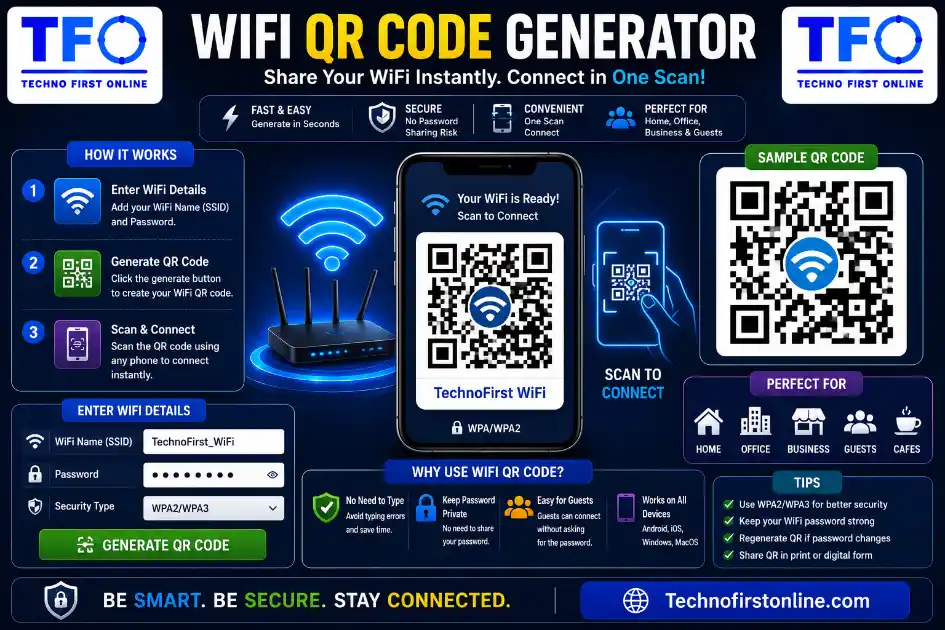
To create a WiFi QR Code, enter your network name (SSID), password, and security type into a WiFi QR Code Generator. The tool instantly generates a scannable QR code that allows guests to connect to your WiFi network without manually typing the password. Most modern Android and iPhone devices can scan the code directly using their camera app.
How to Create a WiFi QR Code — Let Guests Connect Without Typing a Password
Picture this: a friend comes over, and the first thing they ask is “what’s your WiFi password?” You either have to recite a long string of random letters and numbers out loud, or hand them your phone so they can type it in themselves while squinting at the screen. It’s a small moment, but it happens so often that it’s genuinely annoying — for you and for them.
There’s a much simpler way to handle this, and it’s been quietly available for years without most people realizing it: a WiFi QR code. Instead of typing anything, your guest just opens their phone camera, points it at a code, and they’re connected in seconds. No typos, no shouting out passwords across the room, no handing your unlocked phone to someone else.
In this guide, we’ll talk through exactly what a WiFi QR code is, how it actually works behind the scenes, and how you can create one yourself in under a minute using a free online wifi qr code generator.
What Exactly Is a WiFi QR Code?
A WiFi QR code is a small square barcode that, when scanned, automatically connects a device to a specific WiFi network. It doesn’t just store a clickable link the way a typical QR code does — it stores the actual network name and password in a special format that your phone’s operating system recognizes as connection instructions.
When someone scans it with their camera app, their phone reads this information and either connects automatically or shows a one-tap “Join Network” prompt. Either way, there’s no manual typing involved. The password itself is never shown as plain text on the screen unless the person specifically chooses to view it.
This might sound like a fairly modern feature, but it’s actually been quietly built into iPhone and Android cameras for several years now. Most people simply don’t know it exists because there’s never been an obvious reason to look for it — until you’re standing in your kitchen trying to spell out a 16-character password letter by letter.
Why This Matters More Than It Seems
At first glance, this might feel like a minor convenience feature. But once you start using it, it solves a handful of small but genuinely common frustrations.
It removes the back-and-forth of sharing passwords out loud. Long, secure passwords with mixed case letters, numbers, and symbols are great for security, but terrible for reading aloud or typing quickly while someone waits. A QR code skips that entire interaction.
It avoids handing your unlocked phone to someone else. Many people store their WiFi password in their phone’s saved networks or a notes app, which means sharing it the old-fashioned way often involves unlocking your device and handing it over — something most people would rather avoid, even with close friends or family.
It’s far more practical for businesses. Cafes, restaurants, Airbnbs, and small offices deal with this exact problem dozens of times a day. Printing a small WiFi QR code on a table tent, a receipt, or a welcome card means customers connect instantly without ever needing to ask a staff member for help.
It reduces typos entirely. If you’ve ever tried to type a password like “Xk9#mP2vL!qR” on a keyboard with autocorrect fighting you the whole way, you already understand why this matters. A scanned code transfers the exact characters with zero room for human error.
How a WiFi QR Code Actually Works
Behind the visual pattern of black and white squares, a WiFi QR code stores a small piece of structured text. This text follows a specific format that phones are built to recognize, typically including three key pieces of information: the network name (also called the SSID), the password, and the type of security being used, such as WPA or WPA2.
When your phone’s camera scans the code, it doesn’t open a webpage or run an app — instead, it reads this structured text directly and recognizes it as WiFi connection details. Your phone then either connects automatically or prompts you to confirm the connection with a single tap.
This is fundamentally different from a regular QR code, which usually just stores a website link. A WiFi QR code is essentially a small, encoded version of your network’s login screen, condensed into a scannable image.
Creating a WiFi QR Code Step by Step
Generating one yourself is far simpler than it sounds, and you don’t need any technical knowledge or special software. Here’s the general process using a browser-based WiFi QR code generator:
Step one:
Open wifi qr code generator Page
Step two: Type your wifi Details Like Wifi Id and Password
Step three:select your security type. Most home and business networks today use WPA2 or WPA3, though some older routers may still use WPA or even an open, password-free connection.
Step four: generate the code. Once you’ve entered the network name, password, and security type into the generator, the tool creates a QR code image almost instantly. Because this entire process happens inside your browser, your password is never transmitted to a server anywhere — it’s converted directly into the image on your own device.
Step five: save or print it. You can download the generated QR code as an image and either print it out, display it on a screen, or share it digitally. For home use, many people simply print a small card and tape it somewhere convenient, like the back of a router or a kitchen cabinet.
Step six: test it before relying on it. Before assuming it works perfectly, scan it yourself with your own phone’s camera to confirm it connects properly. This only takes a few seconds and saves you from any awkward troubleshooting later when a guest tries it.
Where a Printed WiFi QR Code Makes the Biggest Difference
While this is genuinely useful at home, there are a few specific situations where having a printed or displayed WiFi QR code solves a recurring problem rather than just a one-time inconvenience.
Short-term rentals and Airbnbs benefit enormously from this. Hosts often leave a small printed card with a WiFi QR code on the kitchen counter or welcome folder, eliminating one of the most common questions guests ask within minutes of arriving.
Cafes and restaurants frequently print these codes directly onto table tents, menus, or receipts. Customers connect without needing to interrupt staff, and the business avoids repeating the same password verbally throughout the day.
Offices with visiting clients or contractors can hand over guest network access cleanly, without staff needing to remember or look up the password each time someone new arrives.
Events and conferences with temporary WiFi setups often display a QR code on a screen or printed signage, allowing dozens or even hundreds of attendees to connect simultaneously without a single person needing to ask for help.
Shared housing or dorm rooms where multiple people come and go regularly also benefit, since a posted QR code means new visitors don’t need to track anyone down just to get online.
A Few Things Worth Keeping in Mind
While WiFi QR codes are convenient, it’s worth being thoughtful about where you place them, especially for security-conscious situations.
If your QR code is printed somewhere publicly visible, like a storefront window, anyone walking by can scan it and connect, not just your intended customers. For most small businesses, this is a feature rather than a problem since the goal is usually to make WiFi easily accessible. But if you’re protecting a private home network, it makes more sense to keep the printed code somewhere only guests you’ve actually invited will see it.
It’s also worth remembering that the QR code contains your actual password, encoded but recoverable by anyone who scans it with the right tool. If you ever change your WiFi password, the old QR code will simply stop working, and you’ll need to generate a fresh one to match your updated credentials.
Finally, double-check the network name and password before printing anything physically. A QR code generated with a typo will either fail to connect or connect to the wrong network entirely, and discovering this after printing dozens of cards is far more frustrating than catching it during the generation step.
Why a Browser-Based Tool Is the Right Choice Here
Given that this entire process involves your actual WiFi password, it’s worth being deliberate about which tool you use to generate the code. A browser-based generator that processes everything locally — meaning your password is converted into the QR code directly on your device without being sent to any server — is meaningfully safer than a tool that requires uploading your network details somewhere first.
This is also why these tools tend to work instantly with no loading delay or account creation required. Since there’s no server-side processing happening, there’s nothing to wait for beyond your own device generating the image, which typically takes a fraction of a second.
How This Compares to Other Ways of Sharing WiFi
It helps to compare a WiFi QR code against the methods people have relied on for years, just to see how much friction it actually removes.
The most common approach is simply telling someone the password out loud. This works fine for short, simple passwords, but becomes genuinely tedious with longer, randomly generated ones that mix uppercase and lowercase letters with numbers and symbols. Saying “capital X, lowercase k, the number nine, hashtag” out loud, possibly more than once, is not exactly a pleasant exchange for either person.
Another common method is sharing the password through a messaging app like WhatsApp or text message. This avoids the verbal back-and-forth, but it means the password now exists as plain text in someone’s chat history, potentially forever, and on a device you have no control over. It also requires the guest to switch between apps, copy the password, and paste it into their WiFi settings — a few extra steps that a QR code skips entirely.
Some people rely on their phone’s built-in “Share WiFi” feature, available on both iPhone and Android, which lets two phones share a network directly when they’re physically close together. This works well, but only between devices using the same operating system in many cases, and it requires both phones to be unlocked and nearby at the same time. A printed QR code has none of these restrictions — any phone with a working camera can scan it, regardless of brand or operating system.
Compared to all of these, a QR code is the only method that requires zero typing, works across every modern smartphone, and doesn’t expose the password as readable text unless someone deliberately looks for it.
Setting One Up for a Business
If you’re setting this up for a café, salon, or small office rather than just your home, there’s one extra consideration worth thinking through: use a separate guest network rather than your main one.
Many routers let you create a distinct guest WiFi network with its own password, isolated from whatever staff or business devices use. Generate your QR code using that guest network specifically. This way, even if the printed code ends up photographed and shared more widely than intended, your core business systems remain unaffected.
For placement, table tents work well for restaurants since customers naturally look down while seated. Receipts are a good secondary spot. For salons or offices, a small card near the seating area or front desk usually gets noticed without being intrusive. If the code will be handled frequently, laminating it helps it survive spills and regular use.
What Happens When You Change Your WiFi Password
It’s worth planning for this in advance. The moment you update your password on the router, any previously generated QR code becomes outdated and stops working — it’s simply a static image storing the old credentials, and it won’t update on its own.
After any password change, generate a fresh QR code and replace printed copies you’ve distributed. For home use, this takes two minutes. For businesses with codes posted around a physical space, it’s worth a quick reminder to reprint whenever the network password changes, so you’re not stuck with a code that quietly stops working without anyone noticing.

TechnoFirstOnline provides powerful free online tools, expert tutorials, and smart digital resources to simplify everyday tasks. Explore SEO, image, AI, PDF, and productivity tools designed for everyone.
Other Useful Tools








Password Generator
Open
People Also Read

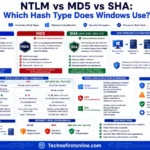
NTLM Hsah vs MD5 vs SHA

decrypt md5 hash

password salting explained

php password hash guide
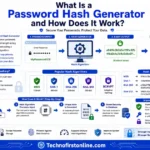
What Is a Password Hash Generator

SHA-1 vs SHA-256 vs SHA-512 comparison

what is bcrypt beginners guide
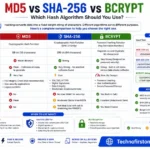
md5 vs sha256 vs bcrypt

Is MD5 Still Secure Hash Collisions Explained

How Generate Hash Online

MD5 Hash Generator Online guide
LastPass vs Norton vs Bitwarden

Password Manager Pros & Cons

16 Character Password Generator

What Makes a Password Strong
Different Password for Every Website
Common Password Mistakes
Random Password Generator vs Manual Passwords

Strong Password Examples

How to Create a Strong Password
WiFi QR Code vs Sharing Password Manually
| Method | Easy | Secure | Fast |
|---|---|---|---|
| Verbal Password | ❌ | ✅ | ❌ |
| Text Message | ⚠️ | ❌ | ⚠️ |
| QR Code | ✅ | ✅ | ✅ |
A WiFi QR Code is only as secure as the password behind it. If your network is still using a weak or easy-to-guess password, sharing it through a QR code won't improve security. Before generating a WiFi QR Code, consider creating a stronger password using our Password Generator Tool. A long, random password helps protect your network from unauthorized access while still allowing guests to connect easily by scanning the QR code instead of typing complex credentials manually.
According to the Android Help Center, Android devices can connect to WiFi networks by scanning QR codes directly from the camera or WiFi settings. Similarly, Apple Support confirms that iPhone users can scan QR codes using the built-in Camera app, making QR-based WiFi sharing a fast and convenient way to connect devices without manually entering passwords.
Frequently Asked Questions
A WiFi QR Code is a scannable code that stores your WiFi network name (SSID), password, and security type. When scanned, it allows users to connect to a WiFi network without manually entering login details.
You can create a WiFi QR Code using a WiFi QR Code Generator. Simply enter your network name, password, and security type, and the tool will generate a QR code that users can scan to connect instantly.
Yes. A WiFi QR Code is generally safe when shared with trusted users. However, since it contains your WiFi credentials, it should not be displayed publicly unless it is intended for public access networks.
Yes. Modern iPhones can scan WiFi QR Codes directly using the built-in Camera app and connect to the network without requiring manual password entry.
Yes. Most Android devices support WiFi QR Code scanning through the Camera app or WiFi settings, allowing users to join networks quickly.
Yes. The password is encoded inside the QR Code along with the network name and security type. The information is not normally displayed but can be read by compatible devices.
Yes. Many homeowners, Airbnb hosts, cafes, restaurants, and offices print WiFi QR Codes so guests can connect instantly without asking for the password.
If you change your WiFi password, the existing QR Code will stop working. You will need to generate a new WiFi QR Code using the updated network credentials.
Yes. Browser-based WiFi QR Code Generators allow you to create QR Codes instantly without downloading or installing any software.
A WiFi QR Code eliminates typing errors, speeds up connections, improves convenience, and allows guests to join your network with a simple scan.