Smart IT tools
Password Manager Pros & Cons
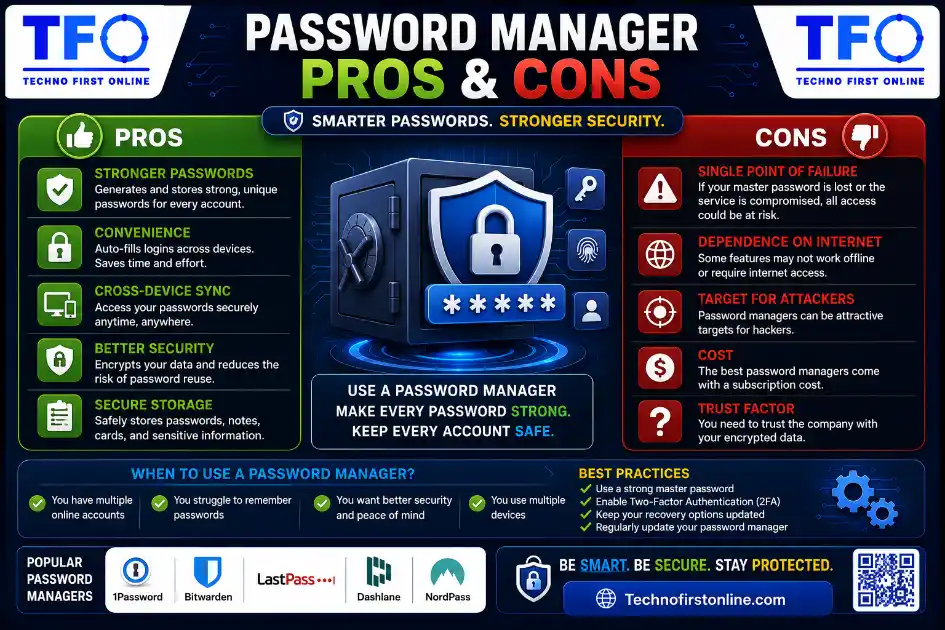
A password manager helps users store, generate, and autofill unique passwords securely across multiple accounts. While not everyone requires a dedicated password manager, it can significantly improve security for people managing dozens of online accounts. For users who prefer a simpler approach, a Password Generator can still help create strong and unique passwords without installing additional software.
Password Manager - Do You Really Need One?
If you have spent any time thinking about your online security you have probably come across the idea to just use a password manager. This is something that tech blogs and banks say a lot. You even see it in browser pop-ups. So it is easy to think that everyone should have a password manager.. People do not really understand what a password manager does or how it works. They also do not know if it is the thing for them to use.
The whole truth is that things are not that simple. Password managers can help with some problems that people have with online security. They also have some downsides that people do not always talk about them. In this guide we will talk about what a password manager’s what it can do. We will also talk about where a password manager can help people and where it does not work so well. We will even talk about tools, like a password generator and how they can be useful even if you do not want to use a full password manager right now.
What Is a Password Manager?
A password manager is software that stores your online login credentials — usernames, passwords, and sometimes other sensitive information like payment details — in an encrypted database called a “vault.” Instead of remembering dozens of different passwords, you only need to remember one master password that unlocks the vault or Your Password Manager.
Once unlocked, the password manager can automatically fill in your login details on websites and apps, generate new random passwords when you sign up for something, and sync this information across your devices. Most password managers come as a browser extension, a mobile app, or both, working quietly in the background as you browse.
Popular examples in this space include Bitwarden, LastPass, 1Password, and Norton Password Manager, alongside built-in options like Google Password Manager that comes pre-installed in Chrome.
The Pros of Using a Password Manager
You Can Use a Different Password for Every Account
This is, by far, the biggest security benefit. Password reuse is one of the most common reasons accounts get compromised. If one website you use suffers a data breach and you’ve used that same password elsewhere, attackers can simply try the leaked password on your other accounts — a technique known as credential stuffing.
A password manager removes the temptation to reuse passwords because you never have to remember them. Every account can have a completely unique, randomly generated password without adding any extra mental burden on you.
Stronger Passwords Without the Effort
Most password managers include a built-in password generator that creates long, random strings of characters automatically. Since you’re not the one typing or memorizing these passwords, there’s no reason to keep them short or memorable — they can be as long and complex as the website allows, which dramatically increases your security.
Convenience Through Autofill
Typing out passwords manually, especially long randomly generated ones, is tedious and error-prone. Password managers handle this automatically, filling in your credentials the moment you land on a familiar login page. Over time, this saves a meaningful amount of time and frustration, especially across the dozens of accounts most people maintain today.
Cross-Device Syncing
Most password managers sync your vault across your phone, laptop, and tablet. This means you can start signing into an account on your computer and finish on your phone without needing to remember or retype anything.
Secure Storage for More Than Just Passwords
Many password managers also let you store other sensitive information — credit card numbers, secure notes, identity documents — in the same encrypted vault, giving you one consistent, protected place for sensitive data instead of scattering it across notes apps, browser bookmarks, or sticky notes.
Breach Monitoring and Alerts
Several password managers now include a feature that checks your stored passwords against known data breach databases and alerts you if any of your credentials have been exposed, prompting you to change them before they can be exploited.
The Cons of Using a Password Manager
A Single Point of Failure
This is the most significant downside, and it’s worth taking seriously. Your entire password vault is protected by one master password. If that master password is weak, guessed, or somehow compromised, an attacker potentially gains access to every account you’ve stored — not just one.
This doesn’t mean password managers are inherently unsafe; reputable ones use strong encryption that makes the vault extremely difficult to crack even if the underlying data is stolen. But it does mean your master password needs to be exceptionally strong, since it’s now protecting everything rather than just one account.
Learning Curve and Setup Time
Migrating from “remembering passwords yourself” to “trusting a password manager” takes some initial effort. You’ll need to import existing passwords, set up the browser extension or app, and get used to a new workflow. For people who are less comfortable with technology, this transition can feel intimidating at first.
Browser and App Compatibility Issues
While most password managers work well across major browsers and apps, you’ll occasionally run into login forms that don’t play nicely with autofill, requiring you to manually copy and paste credentials. It’s not a constant problem, but it does happen often enough to be worth mentioning.
Cost for Premium Features
Many password managers offer a free tier, but advanced features like family sharing, breach monitoring, or multi-device sync are often locked behind a paid subscription. For some users, this is a reasonable cost for the security benefit; for others, it’s an unnecessary recurring expense for something they could manage another way.
What Happens If You Lose Access?
If you forget your master password and the service doesn’t offer (or you haven’t set up) account recovery, you could permanently lose access to every password stored in your vault. This single point of failure cuts both ways — it’s convenient when everything works, but potentially catastrophic if something goes wrong with your only key.
Trusting a Third Party With Sensitive Data
Even with strong encryption, you’re placing a significant amount of trust in the company that built the password manager. While reputable providers undergo security audits, no system is entirely immune to vulnerabilities, and password manager companies have occasionally been targets of attempted breaches themselves.
Do You Actually Need a Password Manager?
The honest answer depends on how many accounts you manage and how seriously you take your overall security. If you have dozens of accounts across banking, shopping, work tools, and social media, a password manager solves a genuine, practical problem — there’s simply no realistic way to memorize that many unique, strong passwords without one.
However, if you only manage a handful of important accounts, you have other options that don’t require fully committing to a password manager ecosystem.
Alternatives and Complementary Tools
Using a Free Password Generator Without a Full Manager
If you’re not ready to commit to a password manager but still want strong, unique passwords, a free browser-based password generator gives you the core security benefit — randomly generated, hard-to-crack passwords — without requiring you to install software, create an account, or trust a third party with your entire password vault.
The trade-off is that you’ll need somewhere to store these passwords yourself, since a generator alone doesn’t remember them for you. Some people keep a small, carefully secured list; others gradually build toward adopting a full password manager once they see the benefit of stronger, generated passwords firsthand.
Built-In Browser Password Managers
Chrome, Firefox, and Safari all include basic password management built directly into the browser. These aren’t as feature-rich as dedicated password managers, but they offer a reasonable middle ground — automatic password generation and storage without installing a separate app, at no extra cost.
Writing Down Passwords Securely
This used to be considered bad practice across the board, but security experts have softened this stance somewhat in recent years. If you write passwords down on physical paper stored somewhere secure (not a sticky note on your monitor), it’s arguably safer than reusing weak passwords across many accounts, since a physical note can’t be remotely hacked.
It’s not a scalable solution for dozens of accounts, but for a small number of critical ones, it’s a reasonable fallback if you’re not ready to use software.
A Practical Middle-Ground Approach
For many people, the most realistic starting point isn’t an all-or-nothing decision between “full password manager” and “nothing.” A practical approach looks like this:
Start by using a free password generator to create strong, unique passwords for your most important accounts — email, banking, and any account tied to financial information. Store these in whatever method feels manageable to you right now, whether that’s your browser’s built-in manager or a written record kept somewhere secure.
As you become more comfortable with the idea of long, randomly generated passwords, consider gradually moving toward a dedicated password manager for full convenience and cross-device syncing. There’s no requirement to switch everything over in one sitting — incremental improvement still meaningfully reduces your risk along the way.
How Password Managers Actually Protect Your Data
It’s worth understanding the technical foundation that makes password managers trustworthy, since “trusting a third party with your passwords” sounds riskier than it actually is when implemented correctly. Reputable password managers use a method called “zero-knowledge encryption,” meaning your data is encrypted and decrypted entirely on your own device before it ever touches the company’s servers.
In practice, this means the company storing your encrypted vault on their servers cannot actually read your passwords, even if they wanted to, because they never have access to the decryption key — that key is derived from your master password, which only you know. This is fundamentally different from a company simply storing your passwords in a database that an employee or hacker could theoretically browse through.
This architecture is also why losing your master password is so consequential. Since the company never had the decryption key to begin with, there’s often no way for them to recover your data even if you contact their support team. Some services offer recovery codes or biometric backup options precisely to address this risk, and it’s worth setting these up immediately after creating a new vault rather than waiting until you actually need them.
Password Managers vs. Browser-Saved Passwords: What’s the Real Difference?
Many people already technically use a basic password manager without realizing it, since modern browsers prompt you to “save this password” and will autofill it next time. It’s reasonable to wonder whether a dedicated, standalone password manager offers anything meaningfully different.
The answer is generally yes, for a few specific reasons. Dedicated password managers typically offer stronger encryption standards specifically designed for credential storage, rather than encryption that’s a secondary feature of a much larger browser application. They also tend to sync more reliably across different browsers and operating systems — useful if you switch between Chrome on your laptop and Safari on your phone, for example, where browser-native password storage often doesn’t sync at all.
Dedicated tools also typically include more robust password generation options, breach monitoring, and secure sharing features for things like family accounts or shared work logins — capabilities that go well beyond what a browser’s built-in save-password prompt was ever designed to handle.
That said, browser-saved passwords are still considerably better than no password management at all, and they remain a reasonable starting point for people who aren’t ready to install a separate application.

TechnoFirstOnline provides powerful free online tools, expert tutorials, and smart digital resources to simplify everyday tasks. Explore SEO, image, AI, PDF, and productivity tools designed for everyone.
Other Useful Tools






Password Generator
Open
People Also Read

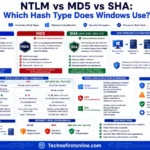
NTLM Hsah vs MD5 vs SHA
decrypt md5 hash
password salting explained
php password hash guide
What Is a Password Hash Generator

SHA-1 vs SHA-256 vs SHA-512 comparison
what is bcrypt beginners guide
md5 vs sha256 vs bcrypt
Is MD5 Still Secure Hash Collisions Explained
How Generate Hash Online
MD5 Hash Generator Online guide

WiFi QR Code Generator
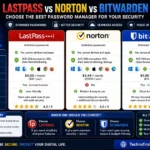
LastPass vs Norton vs Bitwarden

16 Character Password Generator

What Makes a Password Strong
Different Password for Every Website
Common Password Mistakes
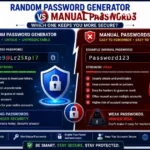
Random Password Generator vs Manual Passwords

Strong Password Examples
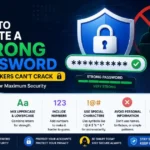
How to Create a Strong Password
According to the Cybersecurity & Infrastructure Security Agency (CISA), users should create unique passwords for every account and avoid password reuse whenever possible. The UK National Cyber Security Centre (NCSC) also recommends using Password Managers to generate and store strong passwords securely. These organizations emphasize that combining unique passwords, password management tools, and multi-factor authentication can significantly reduce the risk of account compromise and credential theft.
Password Manager vs Password Generator
A Password Manager stores and autofills passwords, while a Password Generator creates strong random passwords. Password Managers help manage multiple credentials, whereas Password Generators focus on creating secure passwords without storing them.
Frequently Asked Questions
A Password Manager is a security tool that stores, organizes, and autofills passwords for websites and applications. It helps users create strong, unique passwords without needing to remember every login credential.
Yes. Google Password Manager uses encryption and integrates with Google Accounts to securely store passwords. However, users should also enable two-factor authentication for additional protection.
Google Password Manager can be accessed through your Google Account settings or directly within the Chrome browser under Password Manager settings.
Open Chrome, click your profile icon, select Password Manager, or navigate to Chrome Settings and choose Password Manager from the Autofill and Passwords section.
Most Password Managers can store hundreds or even thousands of passwords, depending on the provider and storage limitations.
Yes. A Password Manager helps you create and store unique passwords for every account, reducing the risk of password reuse and credential stuffing attacks.
A Password Manager stores and manages passwords, while a Password Generator creates strong random passwords. Many Password Managers include a built-in Password Generator feature.
Yes. Most modern Password Managers include a password generator that creates long, random, and secure passwords containing letters, numbers, and symbols.
Browser-based Password Managers provide basic protection and convenience. However, dedicated Password Managers often offer advanced features such as breach monitoring, encrypted vaults, and secure sharing.
Recovery options vary by provider. Some services offer recovery keys, emergency contacts, or backup methods. Without recovery options, access to stored passwords may be permanently lost.