
JPG to PDF Converter
Convert JPG, PNG or WEBP images into a single PDF file — instantly, in your browser. No uploads, no waiting, no server involved.
Drag & drop images here
or click to browse — JPG, PNG, WEBP supported (multiple files allowed)
🔒 100% Private — your images never leave this browser. Everything is processed locally on your device.


JPG to PDF Converter
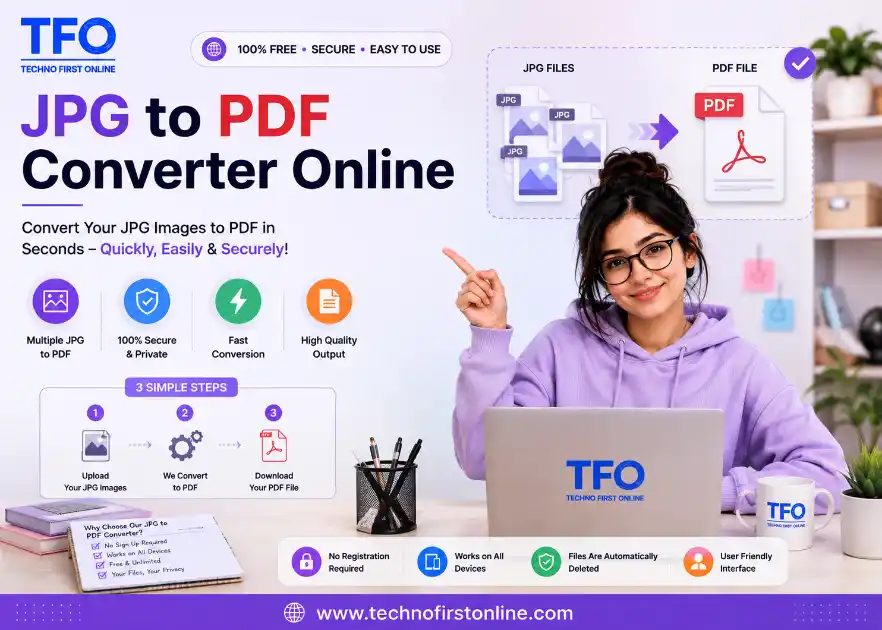
To convert JPG to PDF, upload your JPG or JPEG images into the converter, arrange them if needed, and click the convert button. Your images will be combined into a PDF that you can download and share.
Convert JPG to PDF Online for Free
Converting images into PDF files is something many people need to do every day. Whether you have scanned documents, photographs, receipts, forms, notes, screenshots, or multiple pictures, turning them into a single PDF can make them much easier to share, print, store, and organize.
Our JPG to PDF Converter lets you convert JPG and JPEG images into PDF files directly from your browser. You can upload your images, arrange them in the required order, convert them into a PDF, and download the finished document without installing complicated software.
The tool is designed to make the entire process quick and simple. Whether you are using a desktop computer, laptop, tablet, or mobile phone, you can convert your images to PDF whenever you need them.
Convert JPG to PDF Online
A JPG file is excellent for storing and sharing photographs and digital images, but PDF is often a better format for documents. PDFs are easier to print, share, archive, and use for official or professional purposes.
With an online JPG to PDF converter, you don’t need to open a desktop application or manually insert images into a document. Simply upload your JPG files and convert them into a PDF in a few steps.
Our converter is useful for both single-image and multiple-image conversion. If you have several JPG files that belong to the same document, you can combine them into one PDF instead of creating a separate PDF for every image.
This can save time when preparing documents for school, college, work, applications, business communication, or personal records.
How to Convert JPG to PDF
Converting a JPG image into a PDF is straightforward. You don’t need technical knowledge or special PDF software.
1. Upload Your JPG Images
Start by uploading the JPG or JPEG images you want to convert. Depending on your requirement, you can select a single image or multiple images.
For example, you may have several scanned pages saved as JPG files. Instead of converting each page separately, you can upload them together and create one PDF document.
2. Arrange Your Images
If you are converting multiple images, arrange them in the order in which you want them to appear in the final PDF.
This is particularly useful for scanned documents, assignments, forms, invoices, notes, and other multi-page documents.
3. Convert JPG to PDF
Once your images are ready, start the conversion. The tool converts the selected JPG images into a PDF document.
The conversion process is designed to be simple so that you can get your PDF without going through unnecessary steps.
4. Download Your PDF
After conversion is complete, download the generated PDF file to your device. You can then open it, share it, print it, or keep it for future use.
If your JPG images are too large for the PDF you want to create, you can resize them before converting. Our Resize Image tool lets you adjust image dimensions to suit your requirements, which can be helpful when preparing images for documents, websites, forms, or online submissions.
Convert Multiple JPG Images to One PDF
One of the most useful reasons to convert JPG files to PDF is the ability to combine multiple images into a single document.
Imagine you have 10 scanned pages saved as separate JPG files. Sending 10 individual images can be inconvenient, especially when you need to submit them as one document.
By converting multiple JPG images into a PDF, each image can become a page of the same document. You can then share one PDF instead of sending multiple files.
This is useful for:
- Scanned documents
- School and college assignments
- Office paperwork
- Receipts and bills
- ID or application documents
- Handwritten notes
- Business records
- Photos and image collections
- Forms and applications
- Project documents
A single PDF is usually easier to organize and manage than a large collection of separate image files.
JPG to PDF Online for Free
If you only need to convert an image occasionally, installing dedicated PDF software may not be necessary. An online JPG to PDF converter provides a convenient way to complete the task directly through a web browser.
You can access the converter whenever you need it without setting up a complicated application.
The process is especially convenient when you are working on a different computer or using a mobile device. Instead of searching for software that supports image-to-PDF conversion, you can simply open the tool in your browser and start converting your files.
For the best experience, always make sure your browser is updated and that your files meet the tool’s supported file and size requirements.
Large image files can sometimes make the final PDF unnecessarily heavy, especially when you are combining several high-resolution photos. If you need to reduce the file size of your images before conversion, try our Image Compressor to compress images while maintaining a suitable level of visual quality.
JPG, JPEG and Image to PDF Conversion
JPG and JPEG are two commonly used extensions for the same widely supported image format. Both are frequently used for photographs, scanned pages, screenshots, and other digital images.
An image-to-PDF converter can be useful when these files need to be presented as a document rather than individual pictures.
For example, a collection of photographs may be easier to review as a PDF album, while scanned pages can be combined into a single document for submission or archiving.
You can use a JPG to PDF converter for many different types of image-based content, including photos, pictures, scanned documents, screenshots, and other supported image files.
Why Convert JPG Images to PDF?
There are several practical reasons to convert an image into PDF format.
Easier Document Sharing
Sharing one PDF containing several pages is often more convenient than sending many separate JPG files. It also makes it easier for the recipient to download and manage the document.
Better for Printing
PDF files are widely used for printing because they are designed to preserve document structure and page layout. This makes PDF a practical format when your images need to be printed as part of a document.
Keep Multiple Pages Together
If your document contains several image files, converting them into one PDF keeps everything together in a single file.
Convenient for Applications and Submissions
Many online applications, educational institutions, offices, and businesses commonly request documents in PDF format. Converting scanned JPG pages into one PDF can make document submission much easier.
Easier Organization
Instead of maintaining a folder containing dozens of individual images, you can combine related images into a single PDF document and organize your files more efficiently.
If you are preparing product photos, profile pictures, scanned graphics, or other images for a PDF and want to remove an unwanted background first, you can use our Remove Background tool. Removing the background can help create cleaner images before adding them to your PDF document.
Create a High-Quality PDF from JPG Images
Image quality matters when converting photographs or scanned documents to PDF. A good conversion should retain the important visual information from the original images while creating a usable PDF.
For documents containing text, make sure the original JPG images are clear and readable before conversion. Blurry or very low-resolution images may remain difficult to read after conversion because the PDF conversion cannot restore details that are missing from the original file.
For photographs, a high-quality source image generally produces a better-looking PDF. When preparing a PDF for printing, also consider the image dimensions and page layout.
If your converter provides image quality, page size, orientation, or similar options, choose the settings according to how you plan to use the final PDF.
JPG to PDF on Mobile
You don’t always have access to a computer when you need to convert an image to PDF. Fortunately, an online converter can be useful on smartphones and tablets as well.
For example, you may take a photograph of a document using your phone and then need to submit it as a PDF. Instead of transferring the image to a computer first, you can open the JPG to PDF converter in your mobile browser and convert the image directly.
This can be particularly useful for students, professionals, travelers, and anyone who frequently works with documents from a smartphone.
When Should You Use a JPG to PDF Converter?
A JPG to PDF tool can be useful in many everyday situations.
For students: Convert photographs or scanned pages of assignments, notes, certificates, and study material into PDF files.
For professionals: Combine scanned paperwork, receipts, forms, invoices, or reports into organized PDF documents.
For businesses: Turn image-based records into PDF files that are easier to share and archive.
For applications: Combine photographs or scanned pages into one document when a PDF submission is required.
For personal use: Create PDF albums, save important photographs as documents, or keep scanned records organized.
The main advantage is convenience. Instead of manually creating a PDF, you can complete the conversion online in a few simple steps.
JPG to PDF vs JPG Files
JPG is primarily an image format, while PDF is a document format that can contain images, text, and other content.
A JPG file is usually ideal when you simply want to store or share a photograph. PDF becomes more useful when you want to group several images together, create a document for printing, or submit multiple pages as a single file.
For example, sending five separate JPG files may be inconvenient when those images represent five pages of the same document. Converting them into one PDF creates a more organized result.
The best format depends on what you need to do with the file.
Tips for Better JPG to PDF Conversion
Before converting your images, a few simple practices can improve the final result.
Use clear images: Make sure scanned pages and photographs are sharp and readable.
Check image orientation: Rotate images correctly before creating the PDF if necessary.
Arrange pages carefully: When converting multiple images, check the page order before starting the conversion.
Use appropriate image resolution: Very small or heavily compressed images may not look good when enlarged or printed.
Check the final PDF: Always open the generated document and make sure all pages appear correctly.
Keep related images together: Combining related images into one PDF can make documents easier to manage and share.
People Also Read








stylish text generator

How to change to sentence case online
How to Automatically Change Capital Letters to Lowercase
Grammarly Word Count vs Free Word Counter
word counter google docs — How to Check Word Count
Word Count Checker — Check Word Count in PDFs & Documents
Free Character Counter Online — Count Letters & Spaces
How to Word Counter Online Free
Other Useful Tools












Frequently Asked Questions
Upload your JPG or JPEG image to the JPG to PDF converter, arrange your images if necessary, start the conversion, and download the generated PDF after processing is complete.
Yes. If the converter supports multiple image uploads, you can select several JPG files and combine them into a single PDF document. Arrange the images in the desired order before converting.
The JPG to PDF converter is available for online conversion without requiring traditional PDF editing software. Any file-size, upload, or usage limits depend on the tool’s current configuration.
Yes. JPEG is another common extension for the JPG image format. Supported JPEG images can be converted into PDF using the same image-to-PDF conversion process.
Yes. Photos saved as supported JPG or JPEG image files can be converted into PDF documents. This can be useful for creating photo documents, scanned records, or collections of images.
Yes. An online JPG to PDF converter can be accessed through a supported mobile web browser, allowing you to convert images without needing a desktop computer.
Upload the JPG files you want to combine, arrange them in the required order, and use the conversion option to create a single PDF containing the selected images.
Converting an image to PDF does not automatically improve the original image quality. The final appearance depends largely on the quality and resolution of the source JPG and the conversion settings used.
According to Adobe , JPEG is one of the most widely used image formats, while PDF is commonly used for sharing and presenting documents consistently. Adobe also confirms that image formats such as JPG and JPEG can be converted to PDF.
If you are working on a website and checking your IP address as part of your website or SEO workflow, you may also want to analyze the content of your pages. Our Keyword Density Checker can help you identify how frequently specific words and phrases appear in your content and maintain a natural keyword balance.
Best JPG to PDF Converter Online – Convert JPG to PDF Free
Convert JPG to PDF online for free. Upload JPG, JPEG or image files, arrange them and create a high-quality PDF instantly. No software required.
Price Currency: $
Operating System: All
Application Category: UtilitiesApplication